Delete a Cell, Row or Column
Delete a Cell
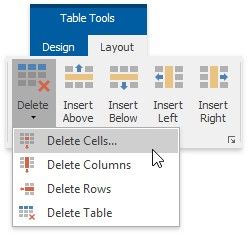
1.Click a cell to be deleted and then on the Table Tools/Layout tab, in the Rows & Columns group, click the Delete button and select Delete Cells from the invoked list...
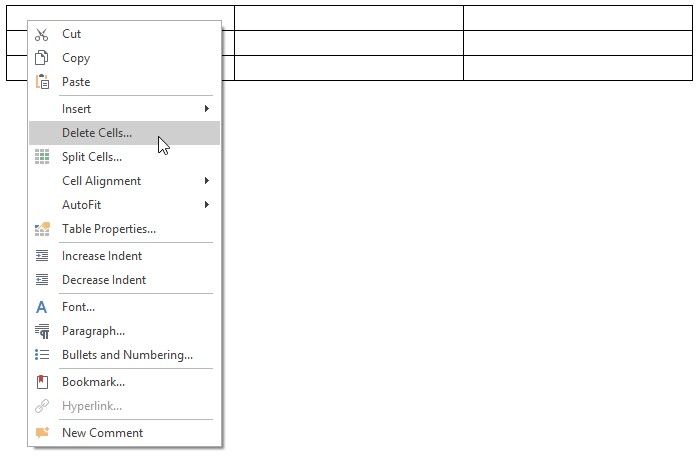
2....or right-click a cell to be deleted and select Delete Cells... from the context menu.
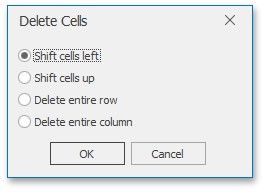
3.In the invoked Delete Cells dialog choose one of the available options:
OPTION |
DESCRIPTION |
EXAMPLE |
||||
OPTION |
DESCRIPTION |
EXAMPLE |
||||
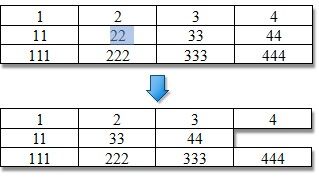
Shift cells left |
Delete the selected cell and move all other cells in the row to the left. |
|
||||
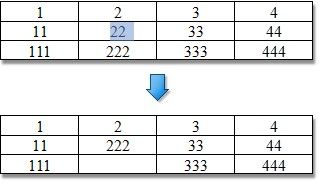
Shift cells up |
Delete the selected cell and move all other cells in the column up. |
|
||||
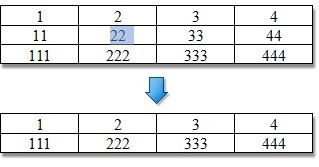
Delete entire row |
Delete a row containing the selected cell. |
|
||||
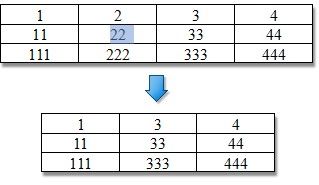
Delete entire column |
Delete a column containing the selected cell. |
|
||||
Delete a Row
1.Select a row to be deleted or click on one cell included into that row.
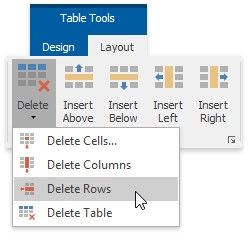
2.On the Table Tools/Layout tab, in the Rows & Columns group, click the Delete button and select Delete Rows from the invoked list...
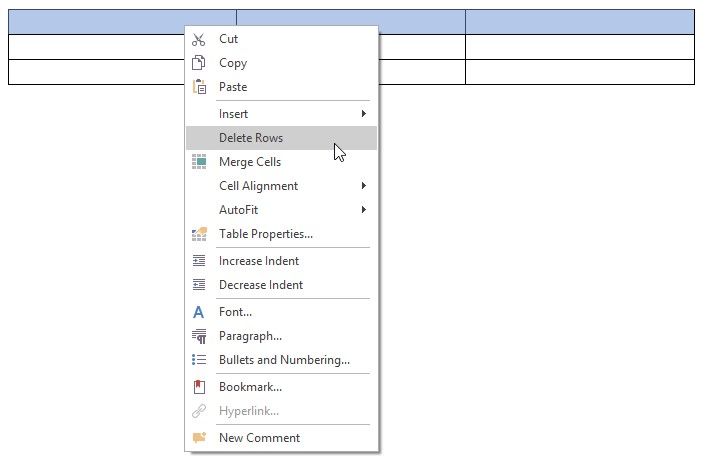
3....or select a row to be deleted, right-click it and select Delete Rows from the invoked context menu.
Delete a Column
1.Select a column to be deleted or click on one cell included into that column.
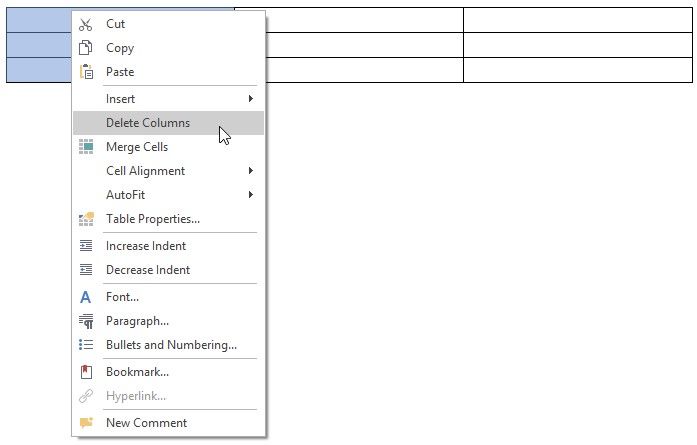
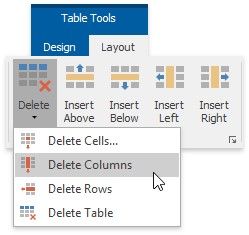
2.On the Table Tools/Layout tab, in the Rows & Columns group, click the Delete button and select Delete Columns from the invoked list...
3....or select a column to be deleted, right-click it, and select Delete Columns from the invoked context menu.