Customization
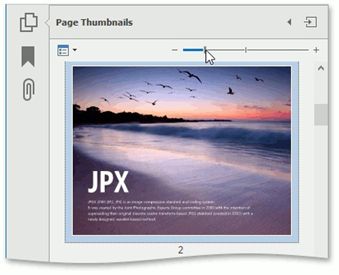
The Page Thumbnails panel provides the following options.
Print Pages... - invokes the Print dialog in which you can print pages that correspond to the selected thumbnails.
Use this option after a thumbnail is selected. If there are no selected thumbnails in the panel, the Page range option in the Print dialog is set to All. This means that all pages in a document can be printed.
Enlarge Page Thumbnails - increases the page thumbnails size.
Reduce Page Thumbnails - decreases the page thumbnails size.
You can also enlarge/reduce thumbnail size using one of the following ways:
press Ctrl on the keyboard and scroll the mouse wheel when the Page Thumbnails panel is focused; use the zoom slider which is placed on the Page Thumbnails panel.