Edit Content in Print Preview
This document describes how to customize field values in a previewed document.
Content Editing Overview
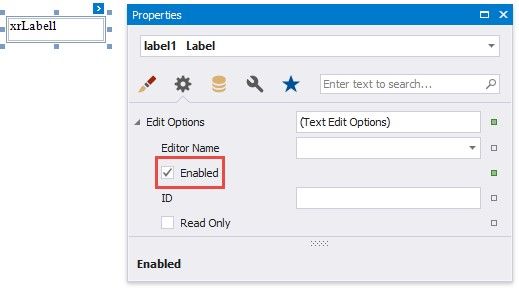
Enable a report control's Edit Options | Enabled property and leave the Edit Options | Read Only property disabled to make the control's content editable in Print Preview.
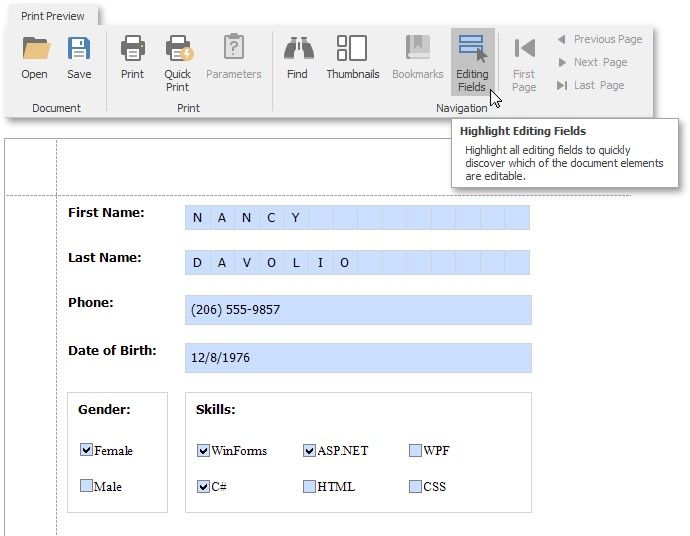
Print Preview provides the Editing Fields toolbar button if content editing is enabled for at least one control in the displayed report. Click this button to highlight all editable fields available in the document.
Use the TAB and SHIFT+TAB keys to navigate between editable fields forward and back.
Click an editable field to invoke an editor and specify a value.
You can enable content editing for data-aware and unbound report controls.
The following report controls support content editing in Print Preview:
TEX T |
BOOLEAN |
IMAGE |
Label |
Check Box |
Picture Box |
Table Cell |
|
|
Character Comb |
|
|
The sections below provide information about options these controls expose. You can use these options to set up content editing.
Content Editing Limitations
Changes made to a control's content in Print Preview does not effect the document's other parts (for example, summary results, grouping, sorting, bookmarks and other settings that were processed before the document was generated).
A control's Can Grow setting is ignored for editable fields. The edited area cannot exceed the control's original dimensions.
Multi-line values can only be entered when no mask is applied to an editable field.
Values entered into editable fields are reset after the document is refreshed (for example, when you submit report parameter values or expand/collapse data in a drill-down report).
It is not possible to edit content in bands if their DrillDownControl property is specified.
The entered values are not preserved in the Top Margin and Bottom Margin bands when the report is exported as a single file to the following formats:
TXT
CSV
HTML MHT
RTF
XLS XLSX image