Conditionally Suppress Controls
This document describes how to display or hide a report control in a published document based on a specified logical condition.
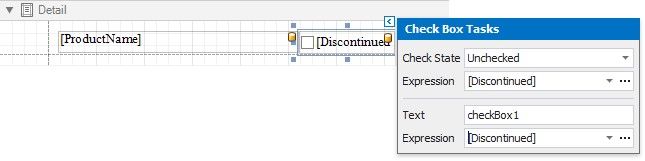
1.Create a new report or open an existing one and prepare the report layout.
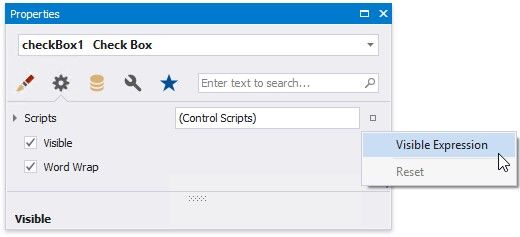
2.Select the required control and switch to the Property Grid. Open the Behavior tab, click the Visible property's marker and select Visible Expression in the context menu.
3.In the invoked Expression Editor, specify the required expression.
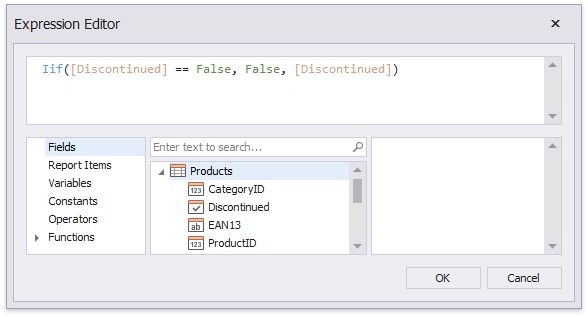
Use the Iif function to define the required condition. For example:
Iif([Discontinued] == False, False, [Discontinued])
This expression means that if the data field's value is False, the control's Visible property is disabled.
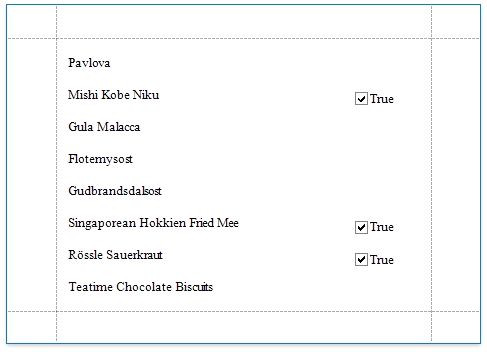
When switching to Print Preview, you can view the report control's visibility changes according to the assigned condition.