Character Comb
Overview
The Character Comb control displays text so that each character is printed in an individual cell.

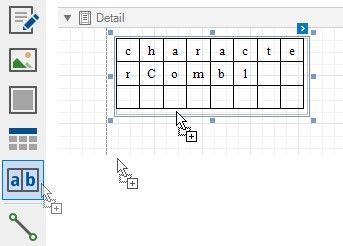
To add a Character Comb to the report, drag the Character Comb item from the Toolbox onto the report's area.
The number of cells displayed by the control in Print Preview depends on the Can Shrink and Auto Width settings.
If both these properties are enabled, the number of cells corresponds to the number of characters in the control's text. Otherwise, the number of cells corresponds to the specified cell size and the control size.
See the Content Layout and Position section to learn more on using these properties.
You can also adjust the character comb's size to match its characters using the Fit Bounds To Text toolbar button or context menu command:
 If the Word Wrap option is enabled, the command keeps control content displayed in multiple lines. It decreases the control's height and adjusts the width to fit this content.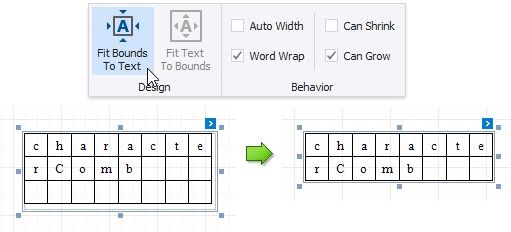
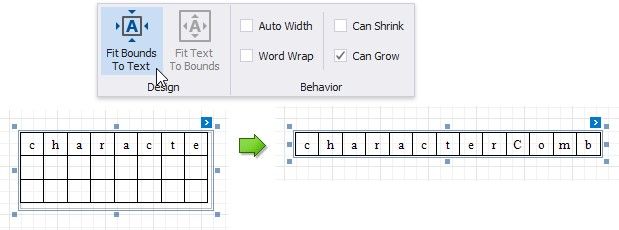
If the Word Wrap option is disabled, the command adjusts the control's height and width to completely display the control's content in a single line. As a result, the number of cells corresponds to the number of characters.
When exporting this control to third-party formats, consider the following
When a report is exported to an XLS or XLSX file, the cells of the Character Comb correspond to the cells of a resulting Excel sheet.
When a report is exported to a CSV (or TXT) file, the content of individual cells is separated (or spaced) by a specified Separator character.
In most aspects, the Character Comb is similar to the Label control from which it inherits most of its properties and its basic behavior. For general information about binding these controls to data and display summary function results, see the Label topic. To learn about Character Comb specifics, see the following sections in this document.