Change Watermark and Background Settings in Print Preview
Invoke the Watermark Dialog
To add a watermark to a document, click the Watermark  button on the toolbar, or click Watermark... on the Background menu. The Watermark dialog will be invoked.
Add a Text Watermark
To add a text watermark, open the Text Watermark tab.
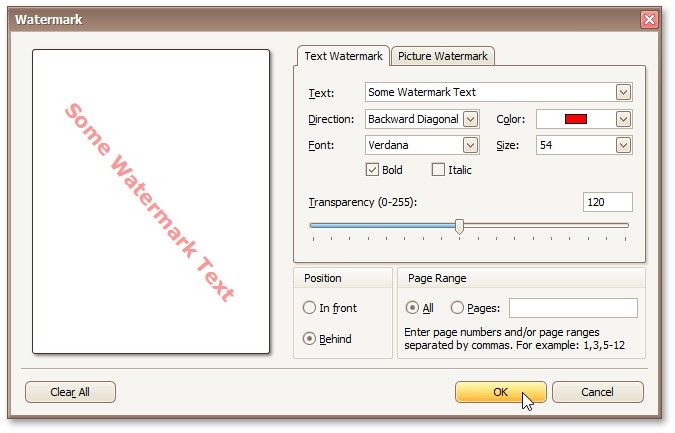
Input the required text, or choose one from the provided options. If required, define other text properties, such as direction, color, font, size, transparency, etc.
Add an Image Watermark
To add a picture watermark, open the Picture Watermark tab.
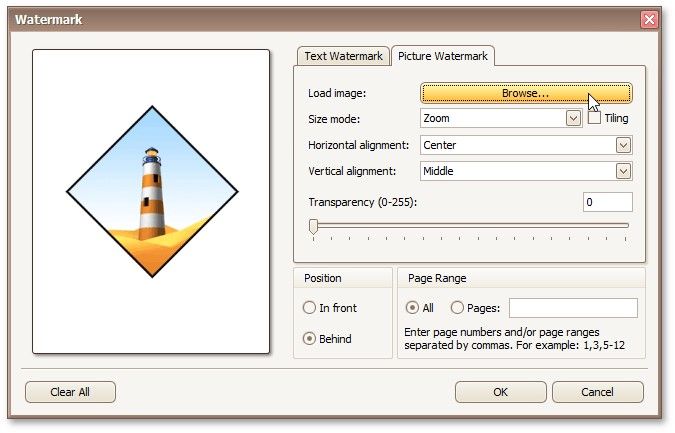
Load the image and customize its properties, such as size mode, horizontal and vertical alignment, tiling, transparency, etc.
Specify the Pages Where you will Display Your Watermark
Specify the required pages to apply a watermark in the Page Range section of the dialog.
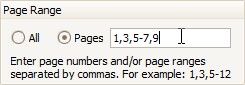
Separate page numbers with commas, or specify page ranges using a dash.
Add a Background Color to a Document
To add a background color to a document, click the Background Color  button on the toolbar, or click Color... on the Background menu. The Background Color dialog will be invoked.
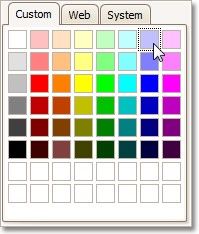
Then, choose a color from the Custom, Web or System palettes.