To Install the RHOP client application on a local Desktop / Laptop device :
Option 1:
To install the RHOP desktop version, the device(PC\Laptop) must be located in the office and connected to the Unipco internal network.
i.Go to the device (PC/Laptop) and enter in a web browser : http://192.168.120.111:8100
ii.Click on the Install button.
Option 2:
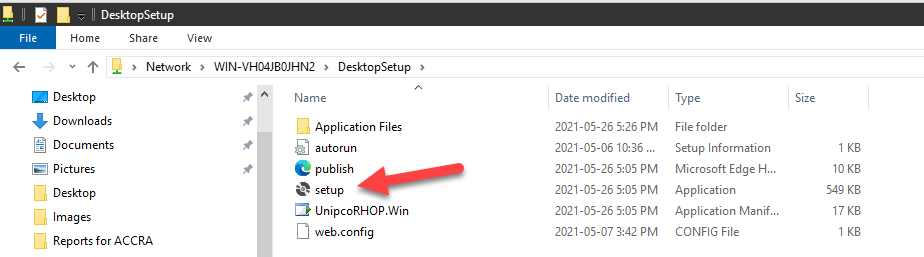
1. Using Windows File explorer navigate from the device to the RHOP server.
2. Select the 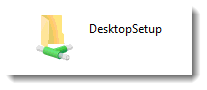 folder to view the setup application
3. Run the Setup program located in the folder
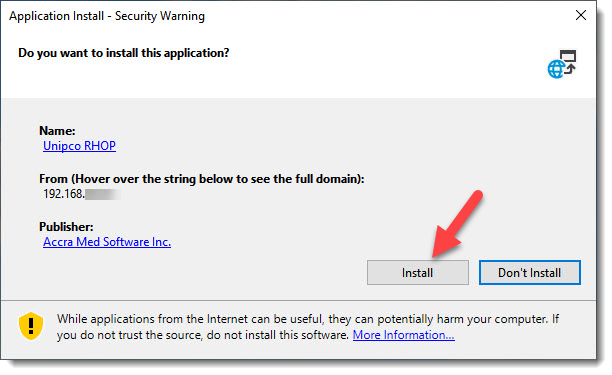
4. Select the Install button to start the installation process.
5. The Installation process will download the files required and copy them on the device.
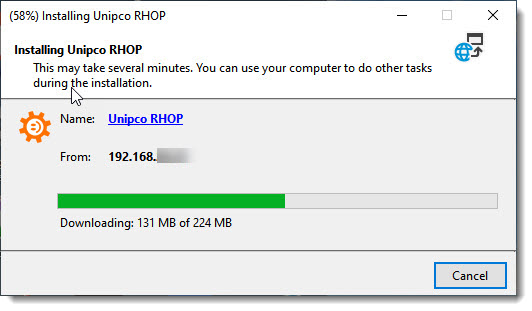
6. Once the files are copies onto the device, Windows may ask you to verify the security certificate for the RHOP application. The RHOP application uses the Windows Code Signing security certificate feature to validate that the application has not been modified or compromised via ransomware or some other malware. The RHOP application has been secured using the Accra, Sectigo Code Signing Certificate validated by Microsoft. (Sectigo, previously known as Comodo, is a leading cybersecurity provider of digital identity solutions and the world's largest commercial Certificate Authority).
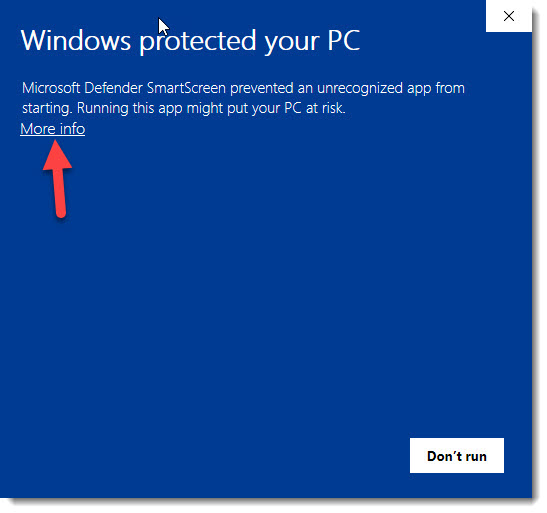
The Windows SmartScreen security system will display the following screen. By default, Windows is set to reject the secure installation without user physically approving the secured software and new security certificate to be installed. You must authorize the secured installation to continue. To authorize the secure installation Select the More Info link.
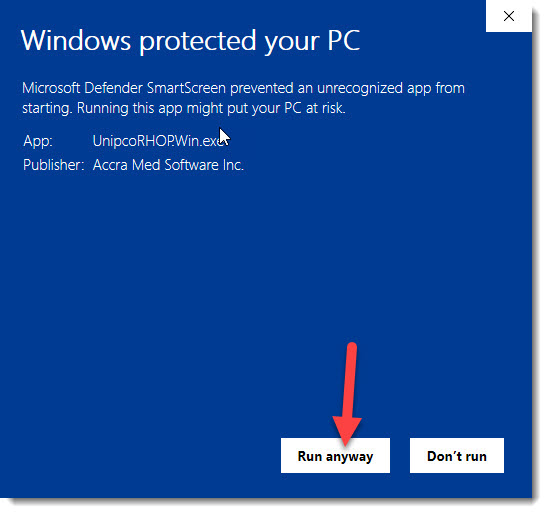
7. The More Info link will change the display and provide the Run anyway button. Select the Run anyway button to finish the installation. This will install The RHOP Accra/Sectigo code signing certificate in the Secure Windows Certificate store that will validate the RHOP software every time it is run to make certain that it has not been tampered or modified. If Windows detect that the software was tampered, (security certificate and Windows Authentication verification process will no longer match) it will refuse to run the RHOP software, requiring you to re-install the software from a secure and valid source. This prevents potential malware from compromising your application and data.
8. Once the installation is completed the RHOP icon will be displayed on your desktop.

IMPORTANT:
RHOP Auto Update feature will verify, every time you start the RHOP application, if an update to the RHOP application is available. The RHOP application security certificate will also be verified by Windows before the application is allowed to run.
If an update to the RHOP application is available, an auto update process similar to the above setup process will automatically occur. The SmartScreen security will appear requesting your approval to update the Accra/Sectigo security certificate in your Windows certificate store and complete the validation of the secured installation.
If the RHOP application or one of its components is modified without using the Accra\Sectigo code signing certificate, Windows will not allow RHOP to run and will report that the application no longer meets the security requirements defined. The only way to correct such an issue is to first verify that your device has not been compromised and then re-install the application from a known good and valid source.
|