Apply a Predefined Style to a Pivot Table
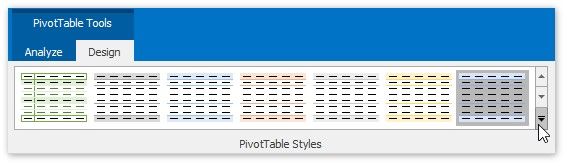
You can change the appearance of a pivot table using one of the predefined pivot table styles. Select the desired style from the PivotTable Styles gallery on the PivotTable Tools | Design tab and it will be automatically applied to the report.
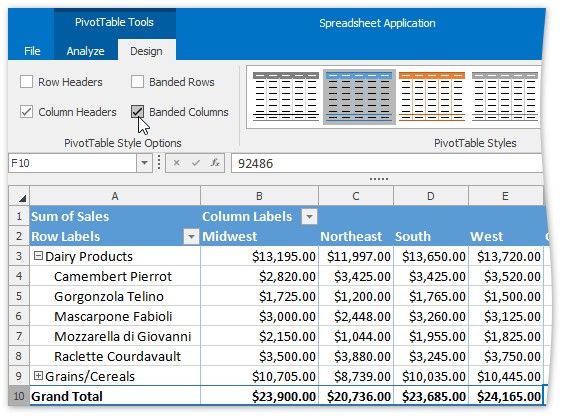
Additionally, you can specify whether to apply style formatting to the row and column headers or to show the banded rows and columns. To do that, on the PivotTable Tools | Design tab, in the PivotTable Style Options group, select or clear the corresponding check box.
Change the PivotTable Layout
This topic describes how to specify the layout options for the entire PivotTable report or a specific row field only.
Change the PivotTable Layout
1.To change the PivotTable layout, on the PivotTable Tools | Layout tab, in the Layout group, click the Report Layout button.
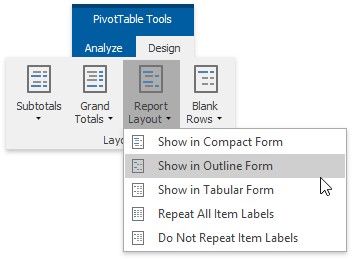
2.The invoked drop-down menu allows you to apply one of the following layout forms.
 Compact Form - the default layout. The report is compressed to prevent data from spreading horizontally off the screen.
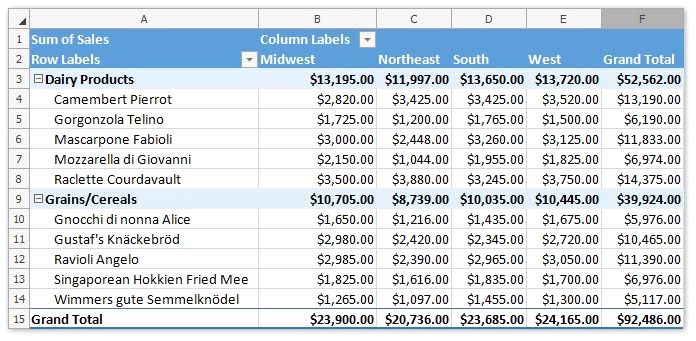
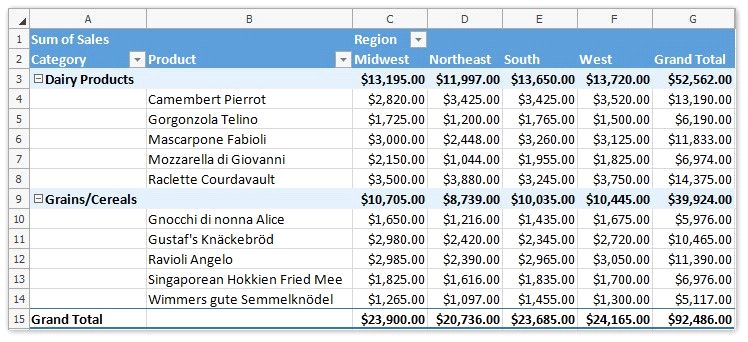
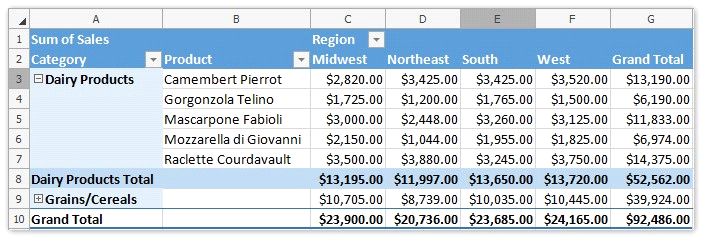
3.For the outline and tabular forms, you can enable repeating item labels in the outer row fields. To do that, select the Repeat All Item Labels item in the Report Layout drop-down menu. To disable repeating, select Do Not Repeat Item Labels.
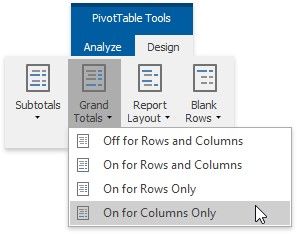
4.You can also specify whether to show/hide subtotals and grand totals in the PivotTable report, or insert the blank line after each item in the outer row fields. To do that, on the PivotTable Tools | Layout tab, in the Layout group, click the Subtotals, Grand Totals or Blank Rows button, respectively, and select the desired action from the drop-down menu.
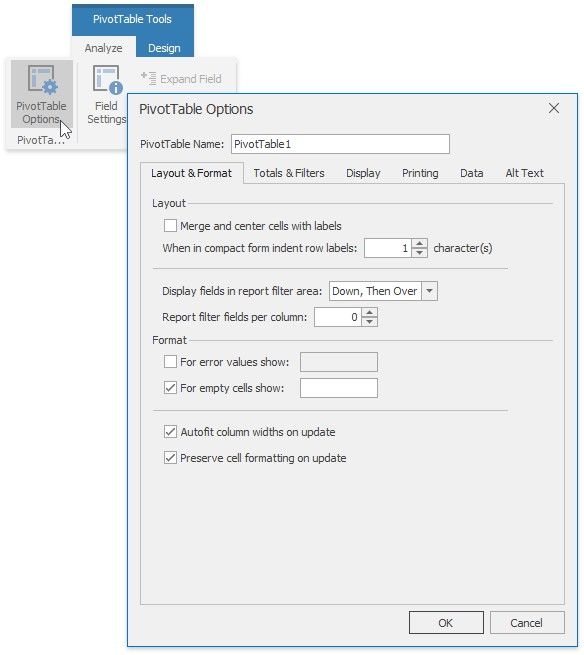
5.The advanced layout options can be specified using the Layout & Format tab of the PivotTable Options dialog. To invoke it, click the PivotTable Options button in the PivotTable group.
Change the Field Layout
 You can change the layout options for the specific row fields only. To do that, select a row field and on the PivotTable Tools | Analyze tab, in the Active Field group, click the Field Settings button.
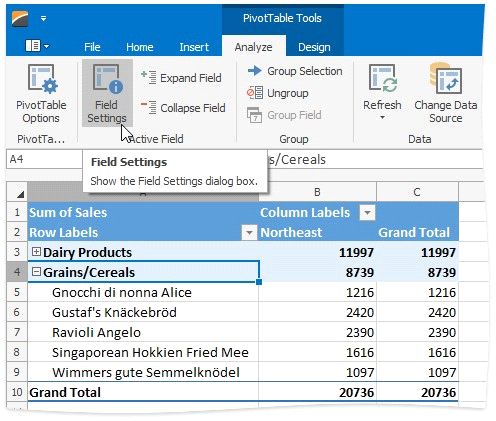
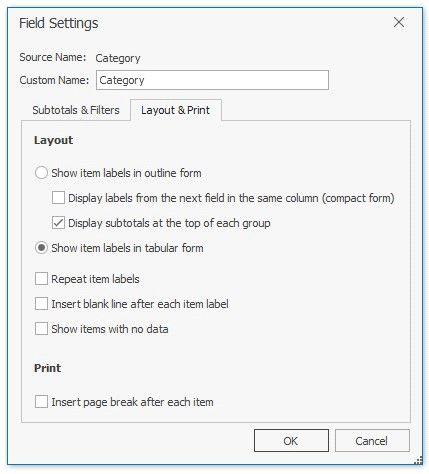
To show field items in tabular or outline form, select the corresponding option in the Layout section. To display field items in compact form, select Show item labels in outline form and then click the Display labels from the next field in the same column (compact form) check box.
The Field Settings dialog also allows you to specify whether to repeat item labels for an outer field, insert the blank line after each field item, or show items with no data. To do that, select the corresponding check boxes in the Layout section.