Labels
This topic describes the steps required to create a report with labels by using the Report Wizard.
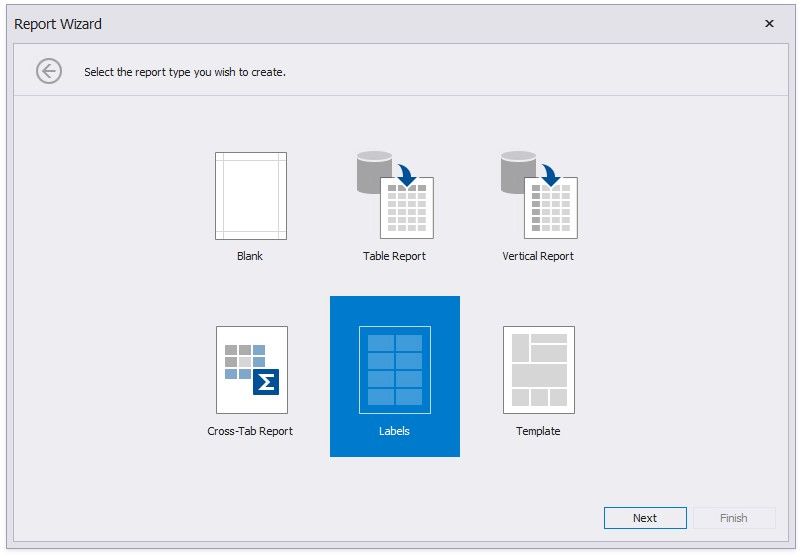
Label report creation consists of the following two steps.
Select the Data Source Type
Select the Label Type
Customize the Label Options
Select the Data Source Type
This wizard page allows you to select the required data source type.
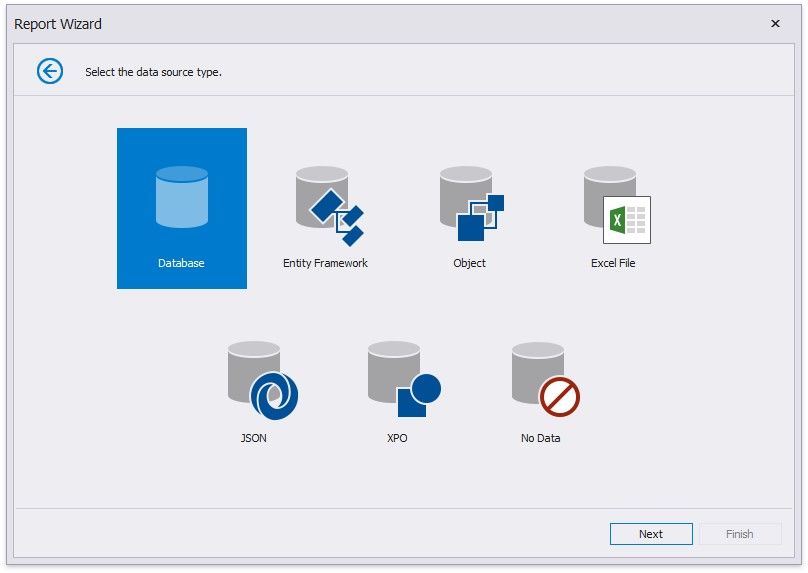
Click Next to proceed to the next wizard page, depending on the selected data source type.
Connect to a Database
Connect to an Entity Framework Data Source
Connect to an Object Data Source
Connect to an Excel Date Source
Connect to JSON Data Source
Connect to XPO Data Source
No Data
Select the Label Type
This page is intended to select a label type from numerous predefined types.
On this page you can choose the proper setting from the Label Products and the Product Number drop-down lists. The selected type defines the label's size and layout, as well as the page type, which is default for this label.
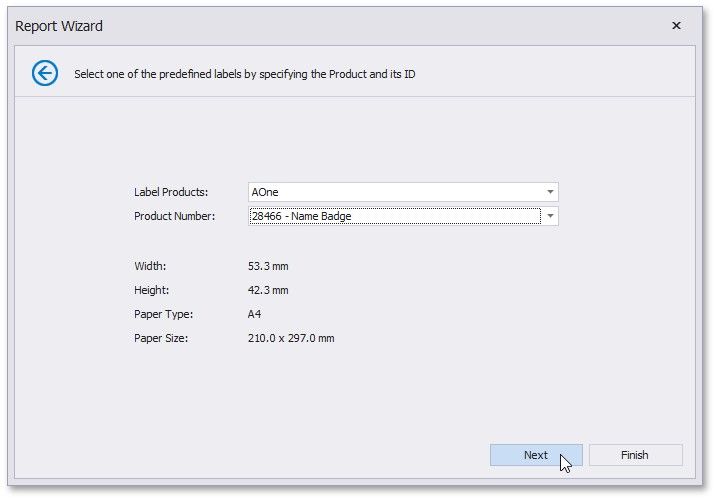
Then, click Next to proceed to the Customize the Label Options page.
Customize the Label Options
This page is intended to customize the label's options.
On this page you can adjust the label's layout parameters and choose the Page Size.
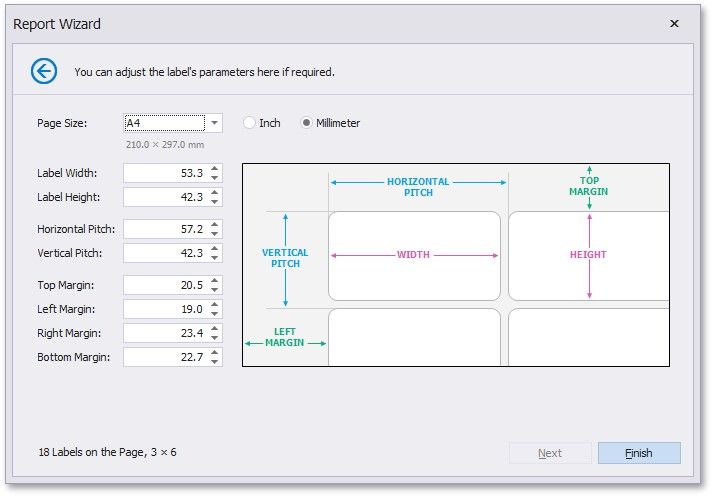
Click Finish to complete report creation.