To print/view a members monthly report, navigate to and open the member profile.
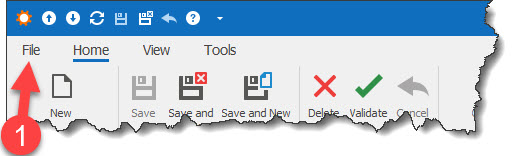
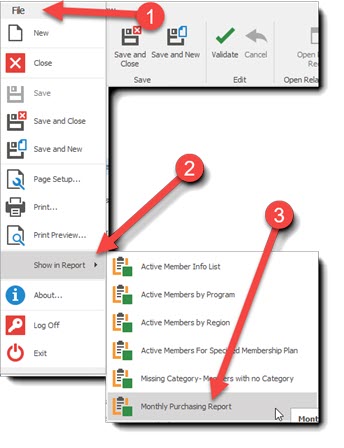
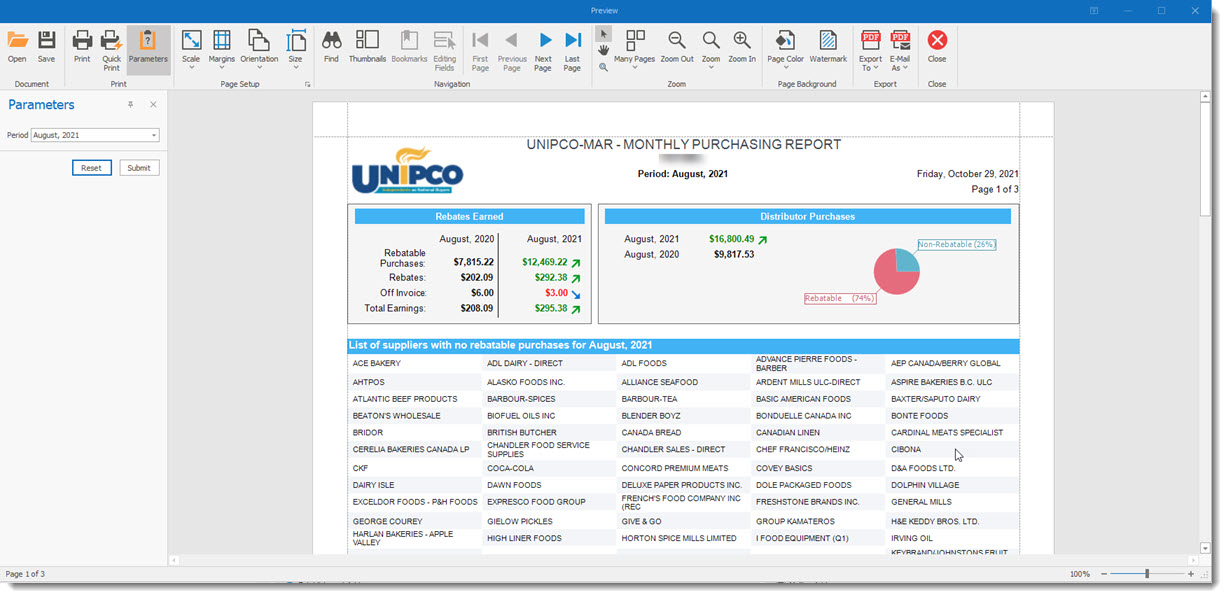
With the member profile open, select the File (1)option in the tool bar. Select the Show in Reports option (2) and then select the Print Monthly Purchase Report (3) option is displayed. When selected, enter the period you want to review in the Report Preview screen and press submit to view the report.