The File Sevice (FS) is a graphical user interface(UI) for managing Private and Shared file system that allows users to perform most common file operations like accessing, editing, and sorting files or folders. This user interface provides easy navigation for browsing folders to select a file or folder from the file system.
The Unipco File Service is a cloud-based file-storage service for collaboration. It lets you save and share files/documents online in a secure corporate environment. It allows the sharing of files and folders with other people without sending large email attachments. It is comparable to Dropbox, Microsoft OneDrive, Google Drive and others. The difference is instead of storing files in a public environment you store files in a secure corporate environment.
The system is not limited by file types or storage space. Each file is scan for Malware and if determined or suspected to contain Malware it will be deleted/quarantine.
The Unipco files system is available from any location. The file transfers are fully encrypted(256 bit AES) and the storage access is secured via a Two Factor Authentication (2FA) methodology.
Each file stored also has a File Versioning methodology which tracks changes to the file for a maximum of the last 3 versions(modifications) and for a maximum storage period of 60 days for each versions. This structure allows users to request files to be restored, if modified or deleted by error within the 60 day limit
Each user is provided with two main folders: a Private/Shared folder accessible by the User and Management for exchanging private files and a General Shared folder permitting files to be shared with all users.
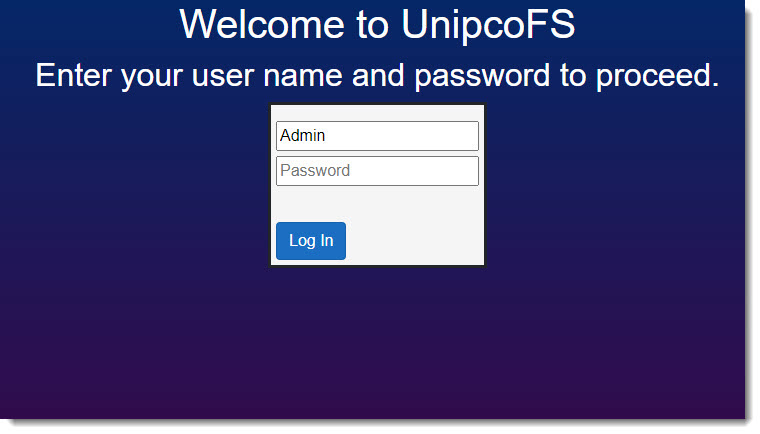
Your normal account credential are required for access.
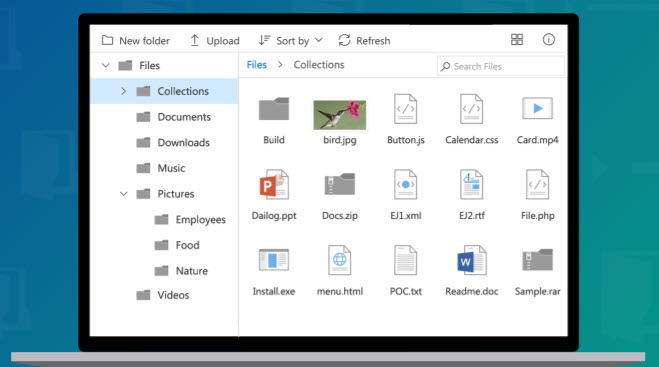
Below is a sample of a potential display of this service:
Logon
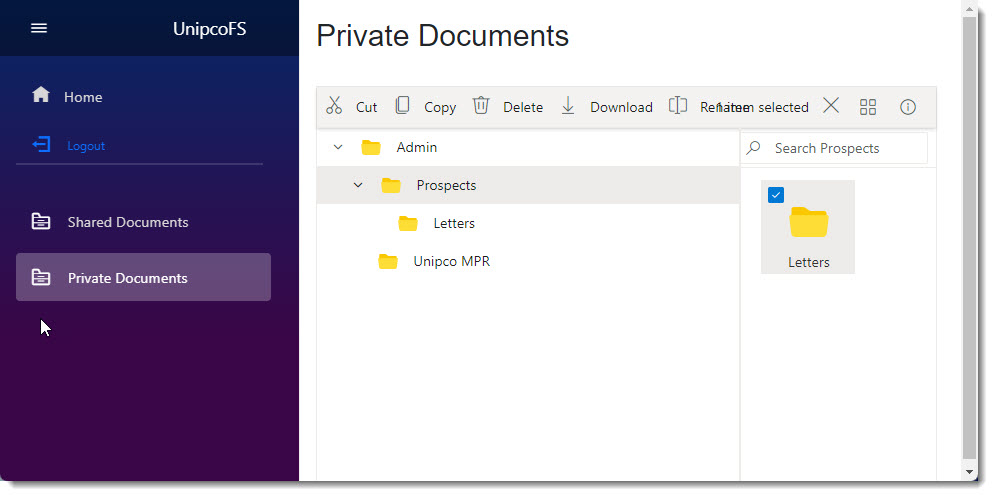
Primary screen
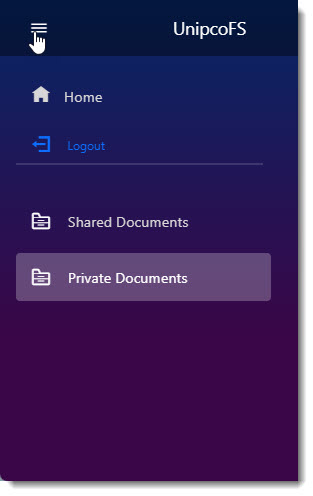
Side Bar
The side bar provides access to the home and logout button as well as to the shared and private folders links. The side bar can be minimized or expanded by using the hamburger button in the top left of the sidebar.

FS ToolBar
The FS File Manager toolbar located at the top of screen allows users to easy navigate the FS interface.

1) New Folder allows users to create the folder structure they require.
2) Upload allows user to upload files to the FS file service
3) Sort By: Files and folders in the file system can be sorted in either ascending or descending order simply by clicking the column header. Files and folders can be sorted based on name, date created, size, etc.
4) Refresh : refresh the screen to display the latest changes.
5)  Define how the files are displayed, user can see a listing or large Icons.
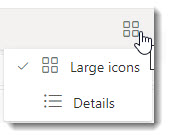
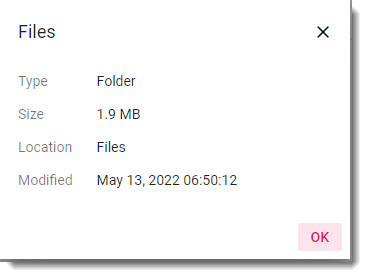
6)  Information Icon: displays the information associated with the selected item.
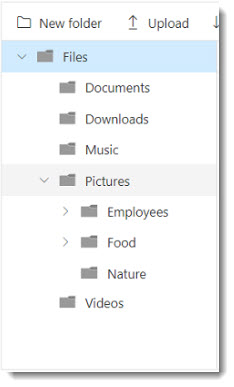
FS Navigation Pane
The Navigation Pane displays the folder structure created and allows the user to navigate to the user folder.
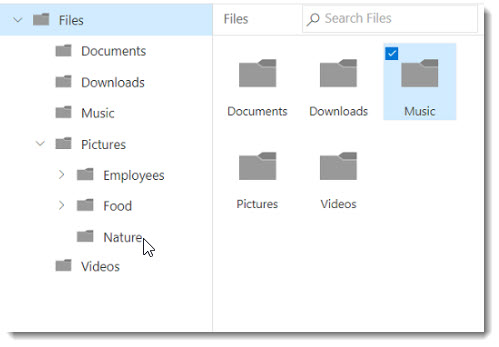
FS Content Pane
The content pane displays the content of the selected folder.
FS File Upload and Download
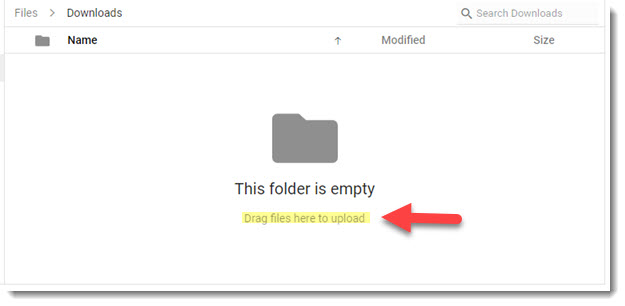
Files can be uploaded by selecting the upload or download button on the tool bar. Uploads can also be performed by dragging into the content page the file to be uploaded.
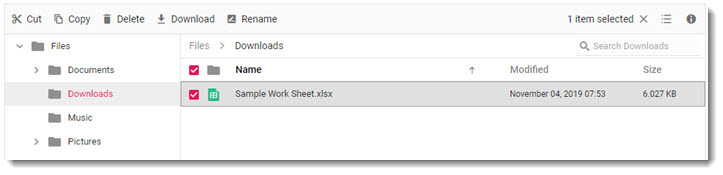
When you select a file, the menu options on the tool bar changes and permit files to be downloaded, deleted, copied, cut, or renamed.
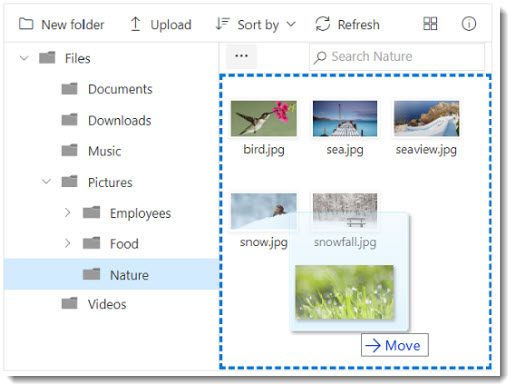
FS Moving files and folders with drag and drop
Files and folders can be moved within the file system by dragging and dropping them. Drag-and-drop support can be turned on or off in the File Manager.The drag and Drop feature also allows files to be moved from one folder to another.
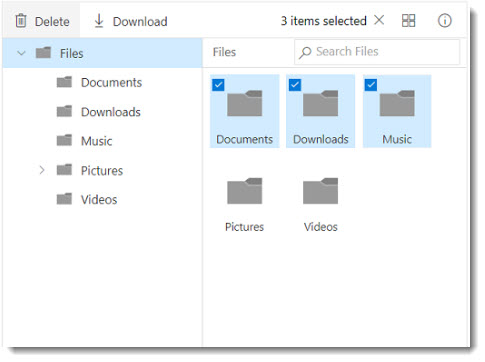
FS Multiple-file selection
The File Manager control has built-in support for the selection of multiple files or folders. Multiple-file selection will be effective when a single operation like download or delete is performed over multiple files in the file system. Place a check mark in each item to be selected.
FS Quick access menu
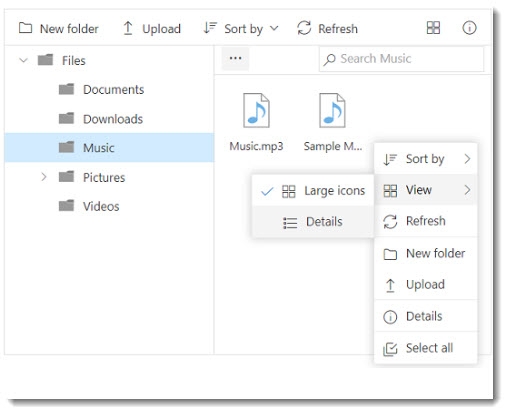
The File Manager control has context menu support to list the operations to be performed with the files and folders. It appears when a file or folder is right-clicked.
FS Searching
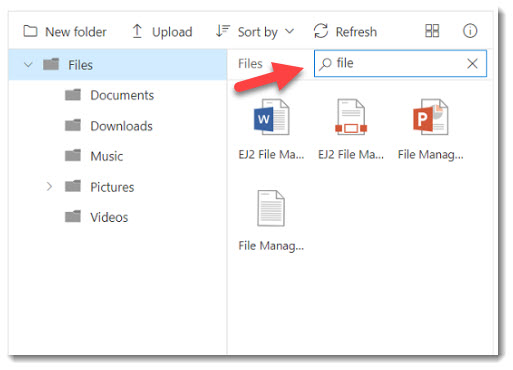
The File Manager control contains built-in searching functionality that allows you to search for and access a file or folder in the current path, as well as its child folders.
FS Access control restriction
The File Manager provides support to restrict access to files and folders. Only authorized users will be able to access files or folders.
In the Navigation Pane are two master folder sections:
1) A Private section for the user private use
2) A Sharing section that allows users to share files with other team members
Management has the ability to drop confidential files in the users private folder section.
Items entered in the share folder can only be deleted by the original individual that placed the item in the shared folder.