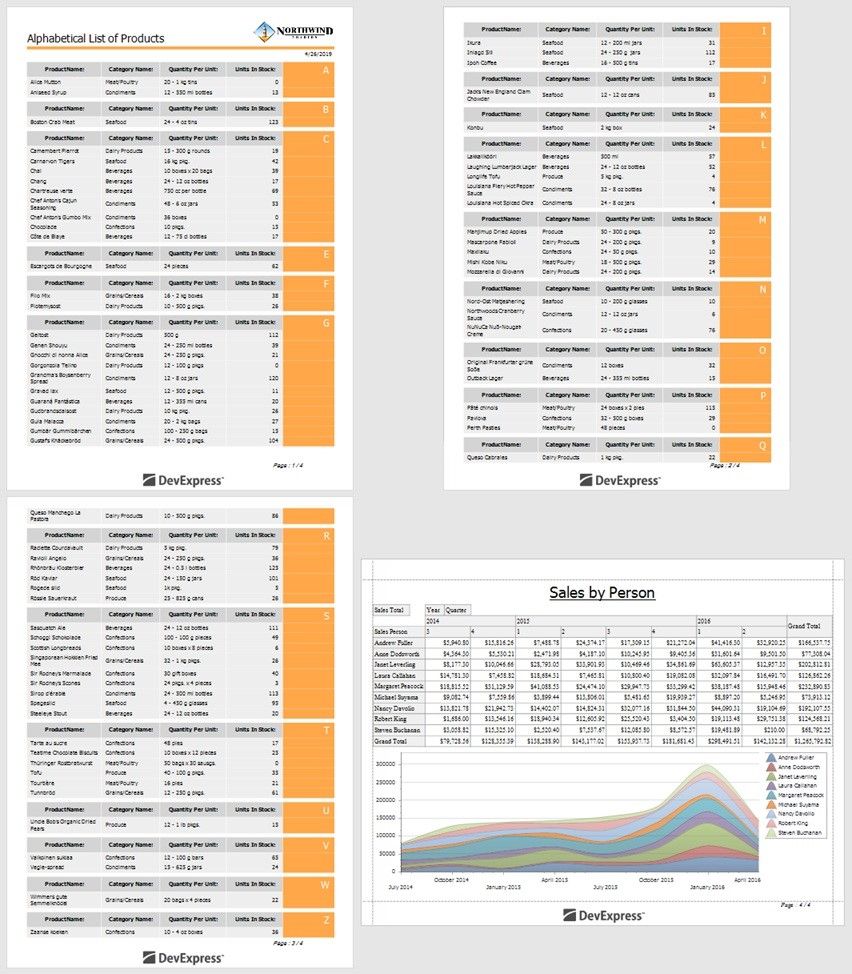
Merge Reports
You may have report pages that do not fit within an entire report template in the following cases:
Title pages or custom pages at the end of the report;
Charts within a table report;
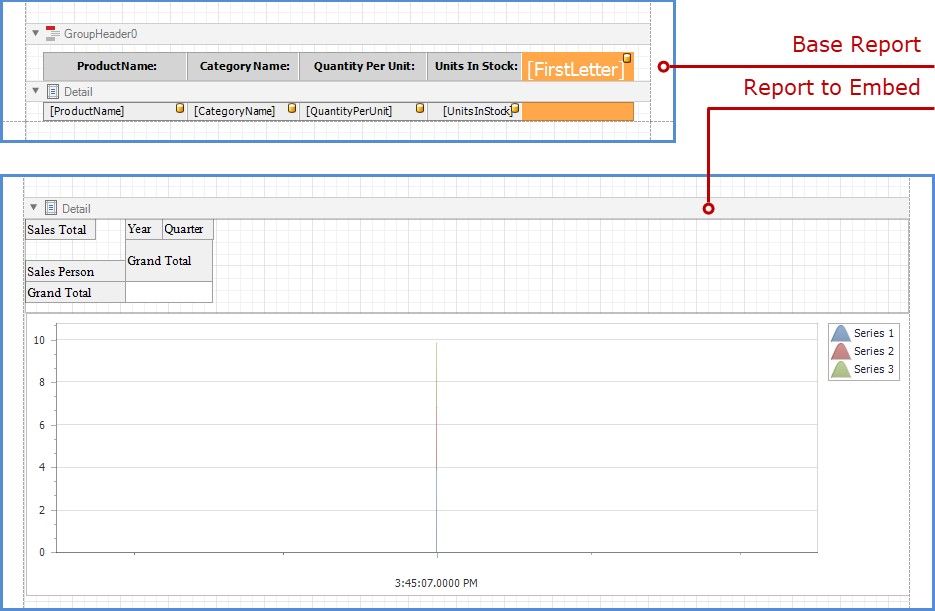
You can create pages in a separate report and merge them into your base report. This enables you to print and export merged pages as a single document, and preserve the original report page settings and orientation.

Add a Report to the End/Beginning
Follow the steps below to add a separate report to the end of another report and print it as a single job.
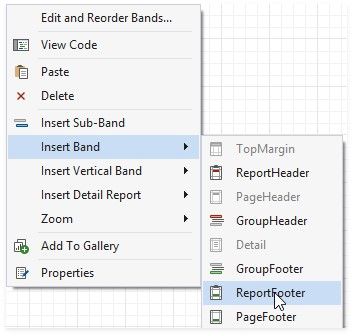
1.Right-click the base report and select the Insert Band / Report Footer item in the context menu.
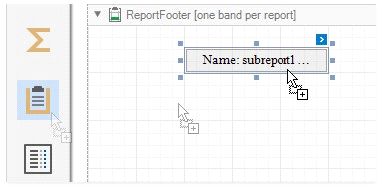
2.Drag a Subreport item from the Toolbox onto the created Report Footer band.
3.Click the subreport's smart tag and specify a report in the Sub-Report Tasks window:
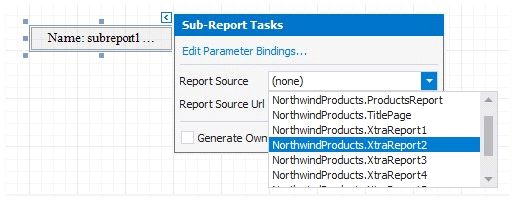
Use the Report Source Url property to assign a custom report.
4.Enable the Generate Own Pages option to print the embedded report on separate pages and use its own page settings.
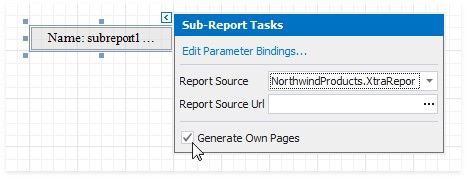
5.Switch to Preview mode to see the combined report.