The Member Purchase Analysis graphically displays a members activity for a maximum period of 24 months.
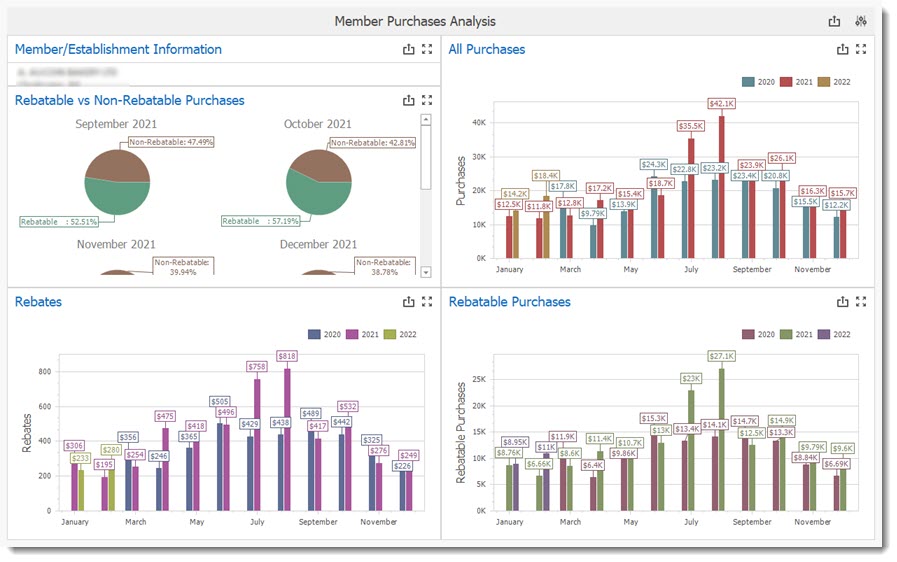
To create a dashboard for a member, select the Dashboard Parameter (1) dialogue button located in the upper right corner of the dashboard. It will open the Dashboard Parameter screen, allowing a user select the member for the analysis by selecting from the drop down (2) field on the right of the Dashboard parameter dialogue a member. Once a member is selected click on the Submit button.
IMPORTANT
Depending on the volume of data to be processed the dashboard can take some time before displaying the results.
|
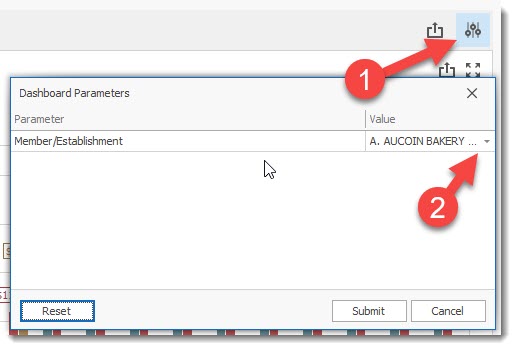
Available Buttons:
 Print / Export Dashboard
 Dashboard parameters
 Dashboard Maximize button
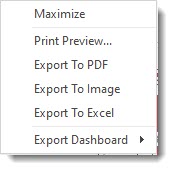 Right clicking your mouse will display the dashboard menu
Dashboard Parameter screen
 Dashboard parameter reset button, allows user to select another member.
 Dashboard Parameter Submit button that starts the creation fo the dashboard.