Master Filter Settings
Master Filtering Modes
The Master Filter item supports two selection modes.
Multiple - Allows you to select multiple elements in the Master Filter item.
Single - Allows you to select only one element in the Master Filter item. When this mode is enabled, the default selection will be set to a Master Filter element. You can change this selection, but cannot clear it.
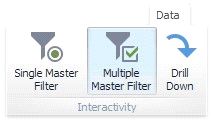
To enable/disable master filtering, use the Multiple Master Filter or Single Master Filter buttons in the Data Ribbon tab.
Filtering Across Data Sources
When different items in a dashboard are bound to different data sources, you can specify that a particular Master Filter should be applied across data sources. This means that it will apply filtering to fields with matching names in all data sources.
Fields are matched by their full names. For fields in other data sources to be affected by Master Filtering, their names must match the name of the field in the current data source, and they must belong to the same hierarchy level so that their full names also match. For instance, Customer.City and Customer.Address.City will not be treated as matching fields.
To enable filtering across data sources, use the Cross-Data-Source Filtering button in the Data Ribbon tab.
Preventing Items from Being Filtered
You can prevent specific dashboard items from being affected by Master Filters. To do this, use the Ignore Master Filters button in the Data Ribbon tab.