Interactivity
This document describes the Master Filtering capability, which enables interaction between the Geo Point Map and other dashboard items.
Master Filtering
The Dashboard allows you to use any data aware dashboard item as a filter for other dashboard items (Master Filter). To learn more about the filtering concepts common to all dashboard items, see the Master Filtering topic.
When Master Filtering is enabled, you can click a callout/bubble/pie (or multiple callouts/bubbles/pies by holding down the CTRL key) to make other dashboard items only display data related to the selected callout(s)/bubble(s)/pie(s).
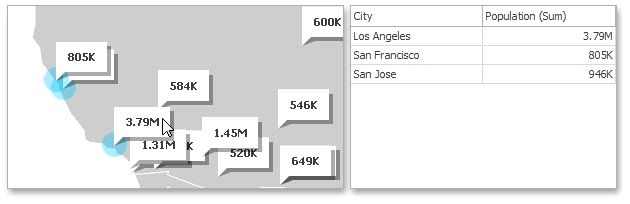
To learn how to enable Master Filtering in the Designer, see the Master Filtering topic.
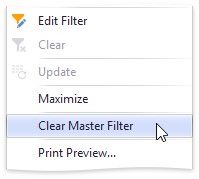
To reset filtering, use the Clear Master Filter button (the  icon) in the map's caption, or the Clear Master Filter command in the context menu.