Image Editor
An image editor allows you to load and display images.
Built-in menu
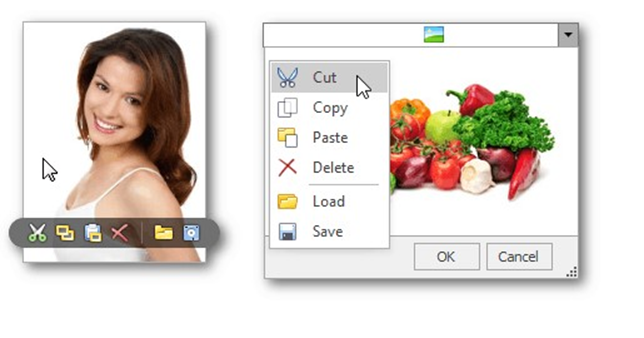
To access the built-in menu, do one of the following.
Hover the mouse pointer over the image editor.
Right-click the image
Open an image
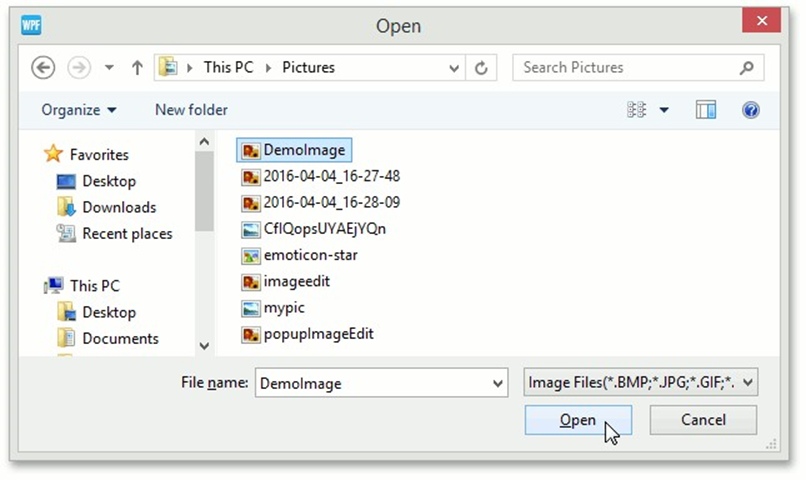
To load a new image, click the Open(Load)  button from the built-in menu.
In the invoked dialog, choose an image file and click Open.
Save an image
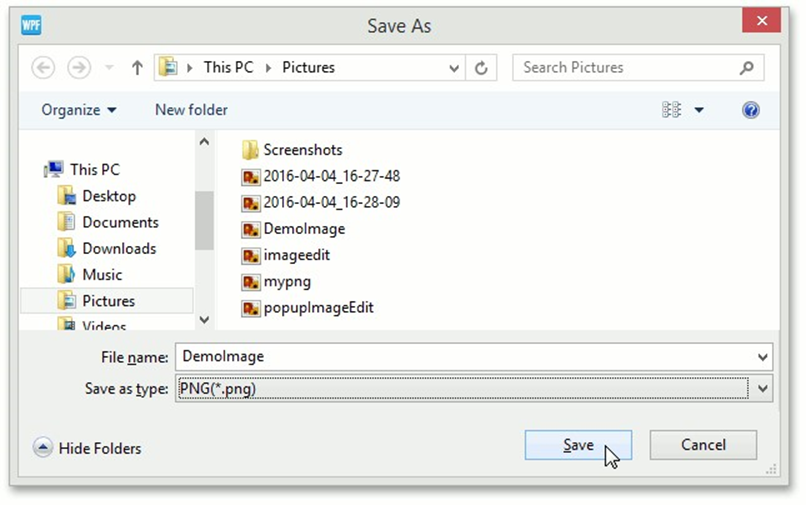
To save the currently displayed image, open the built-in menu and click the Save  button.
In the invoked dialog, locate the folder where you want to store your image, enter the file name and click Save.
Using the clipboard
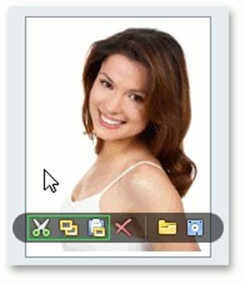
To cut the currently displayed image and copy it to the clipboard, click the Cut To cut the currently displayed image and copy it to the clipboard, click the Cut button.
To copy the currently displayed image to the clipboard, click the Copy  button.
To retrieve the image from the clipboard, click the Paste  button.
Clear the editor
Click the Clear(Delete) button to clear editor contents.
button.
To copy the currently displayed image to the clipboard, click the Copy button.
To retrieve the image from the clipboard, click the Paste button.
Clear the editor
Click the Clear(Delete) button to clear editor contents.