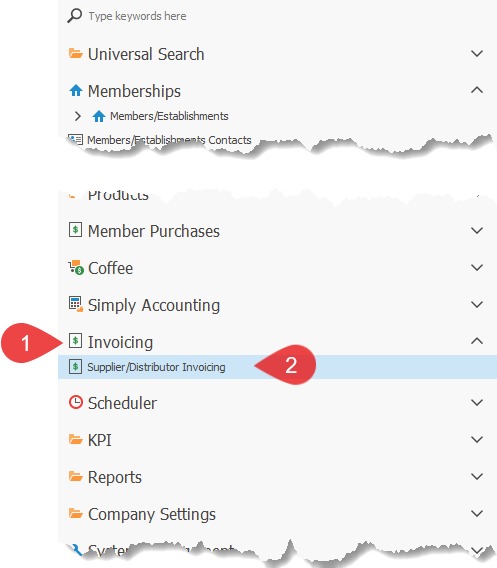
1.Click on the Invoicing menu option to open the menu section.
2.Click on the Supplier/Distributor Invoicing menu option, to open the Supplier/Distributor Invoicing screen(as shown below)

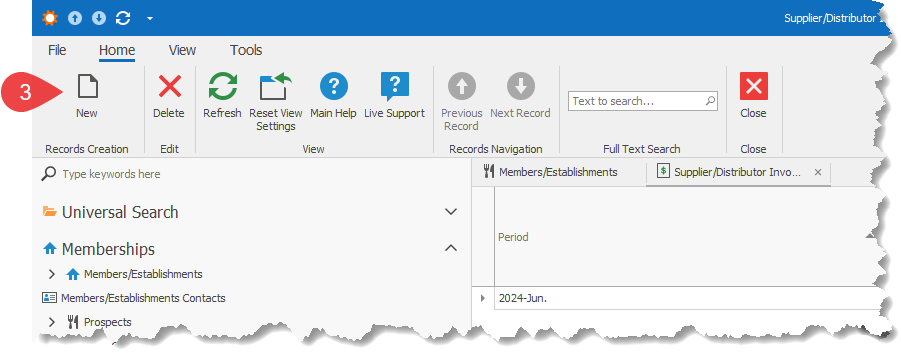
3.Click on the New button to create a new batch of invoices.
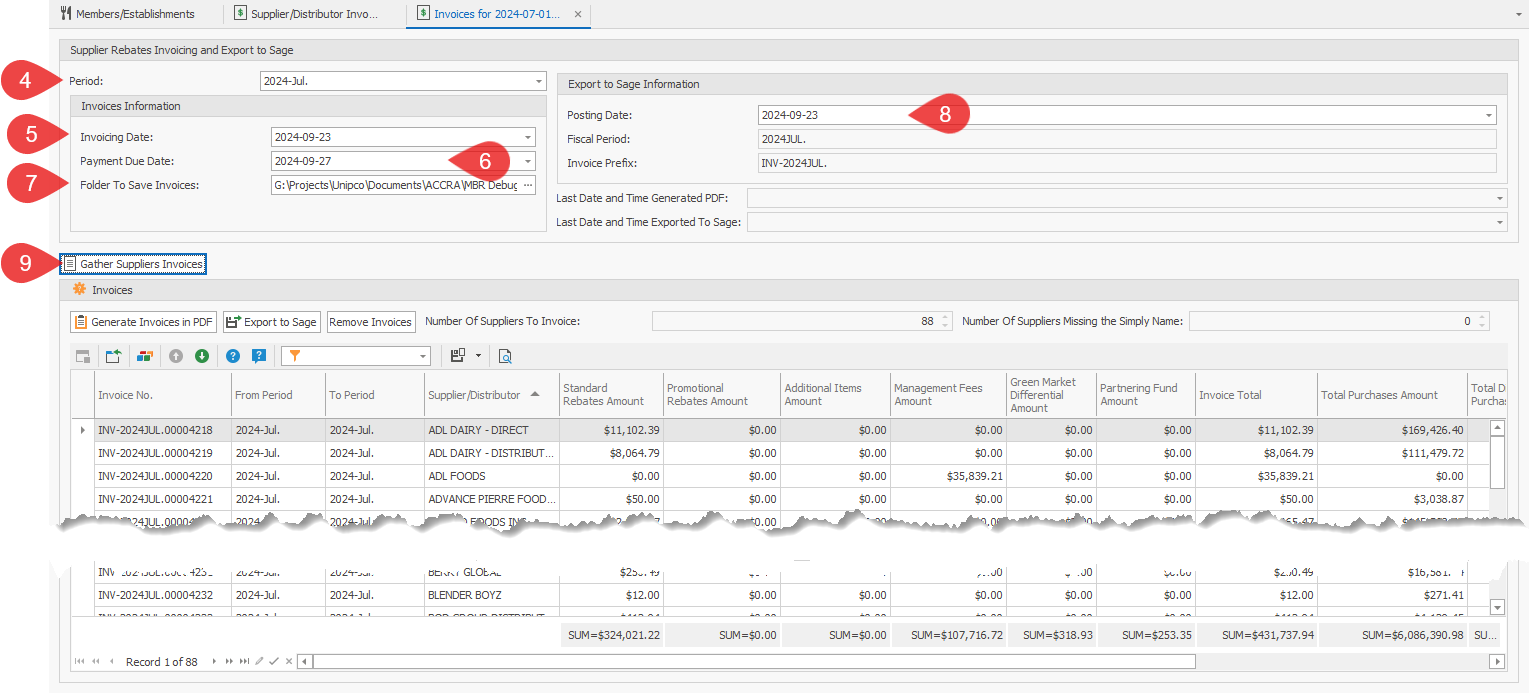
4.Select the ending Period of the batch.
5.Select the Invoicing Date to appear on the invoices.
6.Select the Payment Due Date to appear on the invoices.
7.Select the Folder To Save Invoices. This is where the generated invoice PDFs will be saved.
8.Select the Posting Date. This date will be used for the Export to Sage.
9.Click on the button Gather Suppliers Invoices, to start the process of RHOP assembling and calculating the supplier/distributor invoices.
10.You will be prompted to confirm that it is the correct period that is chosen.
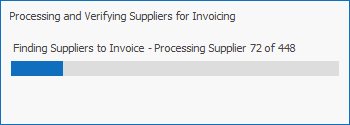
11.You will see a progress screen(like the one below), that will display the progress that RHOP is doing in assembling and calculating the invoices. Do note that the larger number only represents the number of supplier/distributors that are in RHOP, and in no way represent the number of invoices that will be created.
12.When prompted to Save some data before the process in completed, choose Yes, otherwise you will loose any changes that were made.
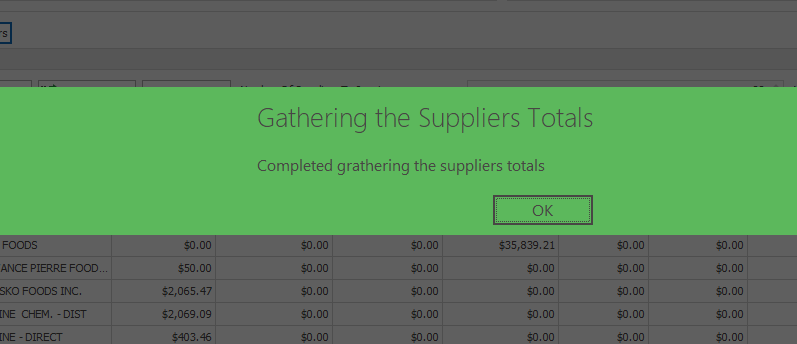
13.The process is completed, when the screen below is displayed.
14.You may be once again asked to Save some data. Again, choose Yes, otherwise you may loose some or all the new information.