Data Presentation Basics
The Dashboard Viewer is used to present dashboards in Windows Forms applications. A wide range of dashboard items are used to display visual or textual information.
DASHBOARD ITEM |
IMAGE |
DESCRIPTION |
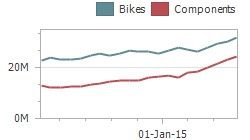
Chart |
|
Displays data graphically using bars, lines, points, etc. |
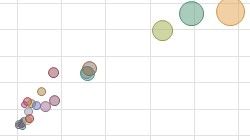
Scatter Chart |
|
Visualizes relationships between numeric variables. |
Grid |
|
Presents data in tabular form. |
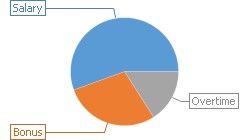
Pies |
|
Displays a series of pies or donuts that represent the contribution of each value to the total. |
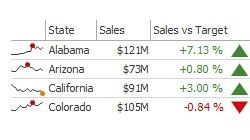
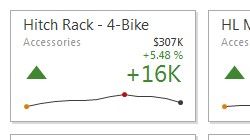
Cards |
|
Displays a series of cards, each illustrating the difference between two values. |
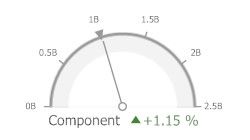
Gauges |
|
Visualizes data within a series of gauges. |
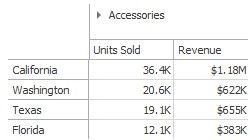
Pivot |
|
Displays cross-tabular reports and allows you to analyze multi-dimensional data. |
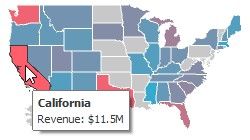
Choropleth Map |
|
Colorizes areas in proportion to the provided values. |
|
||
DASHBOARD ITEM |
IMAGE |
DESCRIPTION |
Geo Point Map |
|
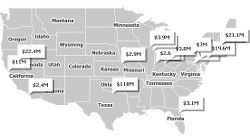
Displays callouts on the map using geographical coordinates. |
Bubble Map |
|
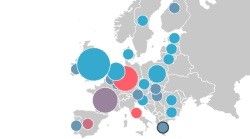
Displays bubbles on the map using geographical coordinates. |
Pie Map |
|
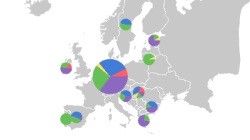
Places pies on the map using geographical coordinates. |
Range Filter |
|
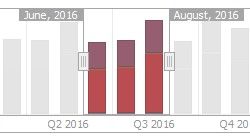
Allows you to apply filtering by dragging selection thumbs along the argument axis. |
Images |
|
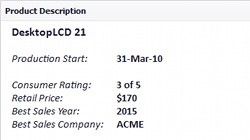
Displays images. |
Text Box |
|
Displays rich text within a dashboard. |
Treemap |
|
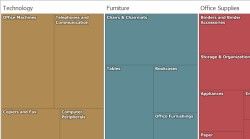
Visualizes data in nested rectangles. |
Combo Box |
|
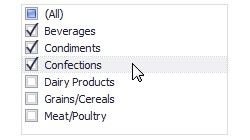
Allows you to select a value(s) from the drop-down list. |
List Box |
|
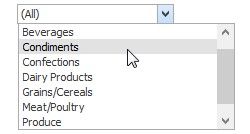
Allows you to select a value(s) from the list. |
|
||
DASHBOARD ITEM |
IMAGE |
DESCRIPTION |
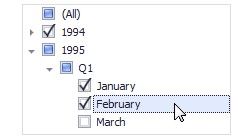
Tree View |
|
Displays values in a hierarchical way and allows you to filter other dashboard items by selecting parent/child values. |
The Dashboard Viewer enables interaction between various dashboard items. These features include Master Filtering and Drill-
Down.
You can inspect raw or aggregated data. See the Data Inspector topic for details.
To learn more about the dashboard layout, see the Dashboard Layout