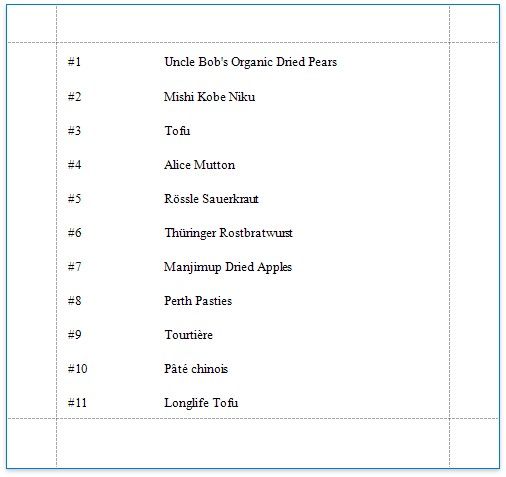
Display Row Numbers in a Report, Group or Page
This document describes how to show the current row number for each data source value displayed in a report.
A label can display row numbers after binding your report to data and specifying a bound data field in the Label's Expression property.
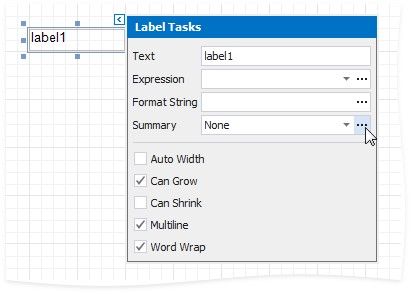
1.Click the label's smart tag. In the invoked Label Tasks window, click the Summary property's ellipsis button.
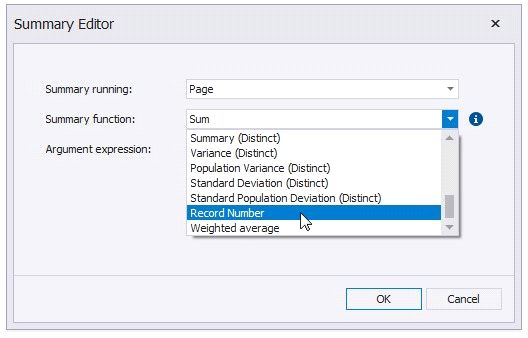
2.In the Summary Editor window:
 Set the Summary running property. Select Report to increment the row numbers throughout the entire report, or select Group or Page to reset the row numbers for every group or page.
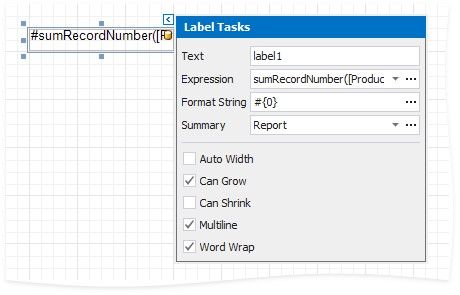
3.Back in the Label Tasks window, you can use the FormatString property to format the resulting value:
You can switch to Print Preview to see the record numbers displayed for the specified range.