Color Ranges
Color Ranges allow you to use predefined sets of colors to apply conditional formatting to different ranges of values. You can also use custom appearance settings for specific ranges.
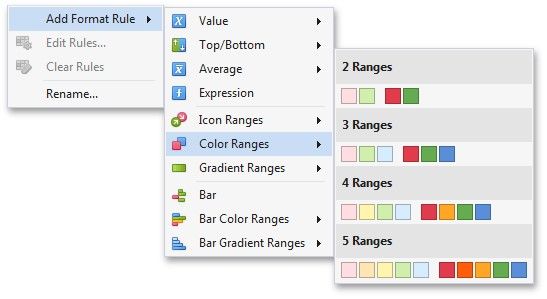
To format values according the required condition, click the data item menu button, select Add Format Rule | Color Ranges and choose the required icon set.
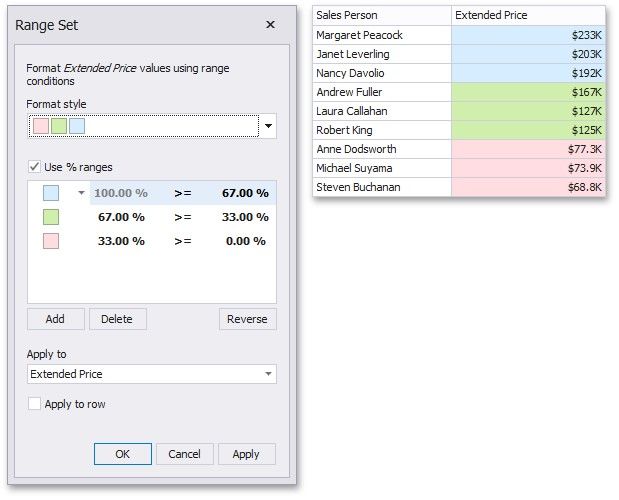
This invokes the Range Set dialog containing the set of value ranges and corresponding appearance settings. The Grid dashboard item on the right displays the default formatting applied using the predefined set of 3 colors.
To change the appearance settings applied to values corresponding to the specified range, click the button next to the required color and select a new color or specify custom appearance settings. To learn how to specify custom settings, see the Specify Appearance Settings paragraph in the Conditional Formatting topic.
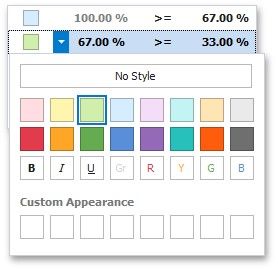
Select No Style to disable the indication for the required range.
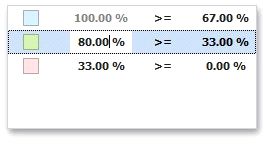
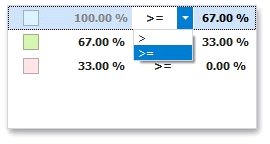
You can change range boundaries by specifying the required values.
The greater or equal sign includes the smallest value for the current interval while the greater sigh excludes the smallest value from the current interval and includes it in the next interval.
 Use the Add and Delete buttons to add new ranges or delete the selected range respectively.