Calculate a Summary
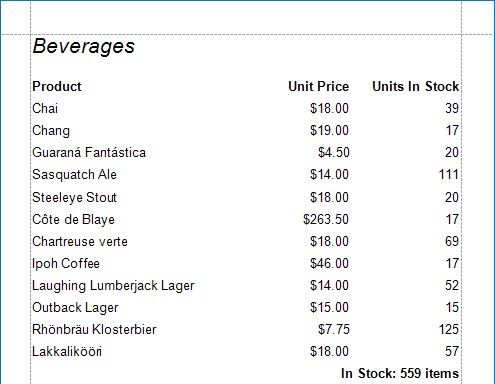
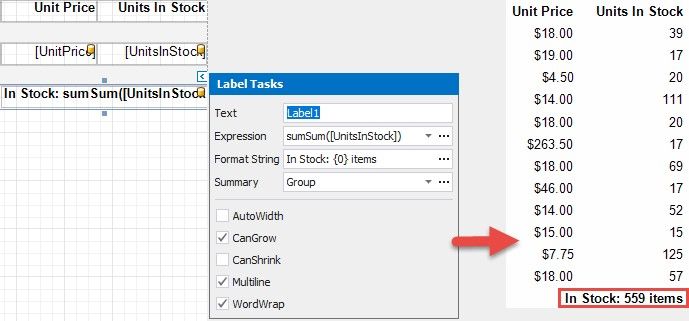
This document shows how to use a report control's Expression property to calculate a group summary, as shown in the image below:
Follow the steps below to calculate a summary:
1.Create a report bound to a data source.
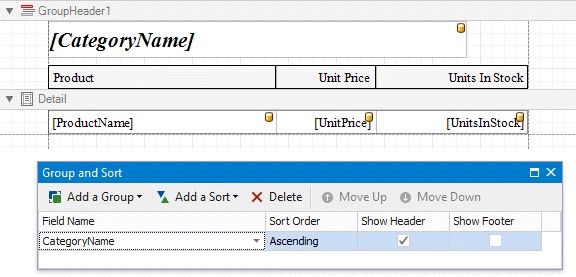
2.Use the Group and Sort Panel to group report data by the key data field and construct a layout like the following:
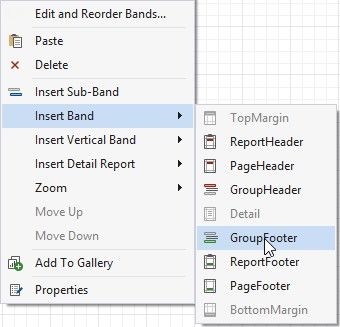
3.Right-click the report's Detail band and select Insert Band / Group Footer from the context menu.
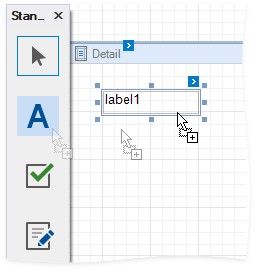
4.Drop a Label control onto the Group Footer band.
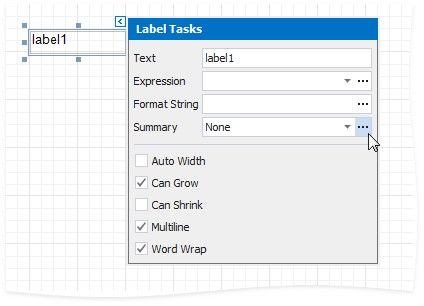
5.Click the label's smart tag, then click the Summary field's ellipsis button to open the Summary Editor form.
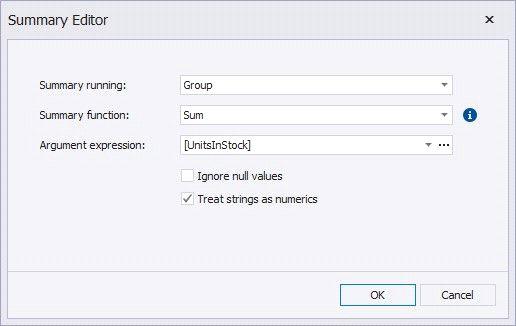
6.In the Summary Editor form, use the following options:
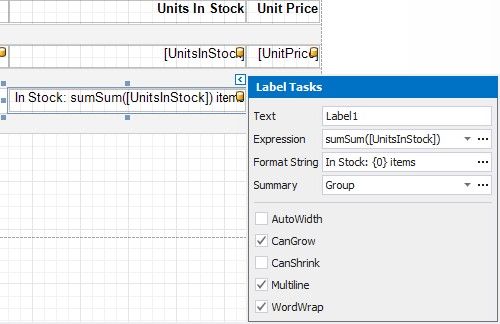
7.You can use the Format String property to format the summary value:
Switch to Print Preview mode to see the result: