Business Owners are similar to the members section with the exception that entries in this list are the Business Owners that own the members establishments/. This section is for tracking owners of multiple members locations.
The Grid listing can be grouped by various grid headers. ( see Grid for more information)

•To create a new Business Owner record select on the tool bar the New  button.
•To open a Business Owner record double click the Business Owner record and the Business Owner profile will be displayed. Once the Business Owner profile is open the user can edit the information it contains.
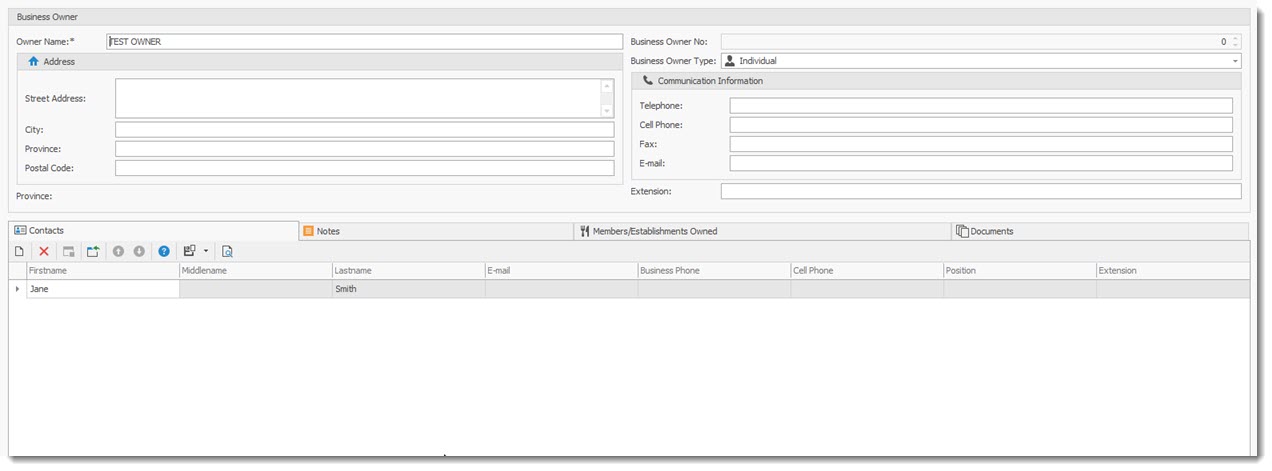
Owners Name: the name of the Owner.
Business Owner No: assigned automatically by the system and cannot be changed by the user.
Business Owner Type: Drop down list of classification for the Owners..
Address Information: Address of the Owner
Communication Information: How to contact the owner
Contact tab:
Contains a list of Contacts for the owner.
•To add a new contact use the New  record button in the tab section.
•To edit a record double click the record.
The Contact Profile dialogue will be displayed, Enter the Contact information.
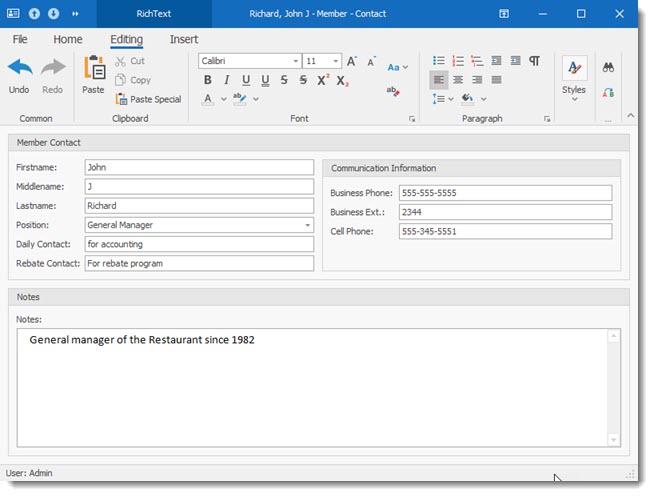
To Save:
▪ Select the File Option on the tool bar
▪ Select one of the Save Options.
Members Note tab:
Contains a list of Notes associated to the member. Each note contains a date of when it was created.
To Add or edit a member note follow the same instructions as those for the Contact list
Members / Establishments Owned tab:
Contains a list of establishments Owned by the Business Owner.
To Add or edit a member note follow the same instructions as those for the Contact list
Documents tab:
Contains a list of Documents associated to the member. Each Document contains a document description, document type and date of when it was created.
To Add or edit a member document follow the same instructions as those for the Contact list