Bind a Report to JSON Data
This topic describes how to bind a report to JSON data.
Create JsonDataSource
1.Create a new report.
2.Click the report's smart tag. In the invoked actions list, expand the drop-down menu for the DataSource property and click Add New Data Source...
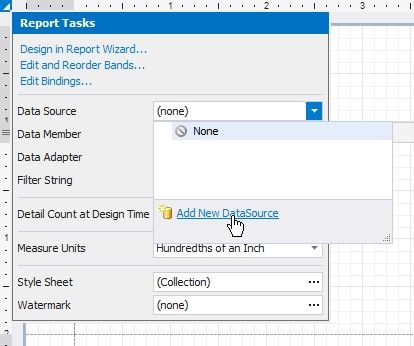
This invokes the Data Source Wizard.
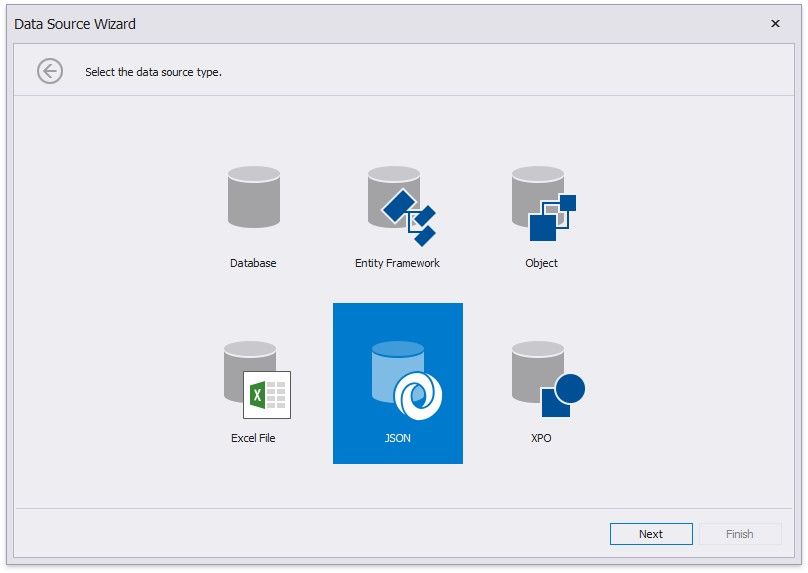
3.Choose the JSON option and click Next.

4.The next wizard page allows you to specify a Web Service Endpoint, a filename, or a string with JSON data. In this example, the JSON data is obtained from a JSON sample data location.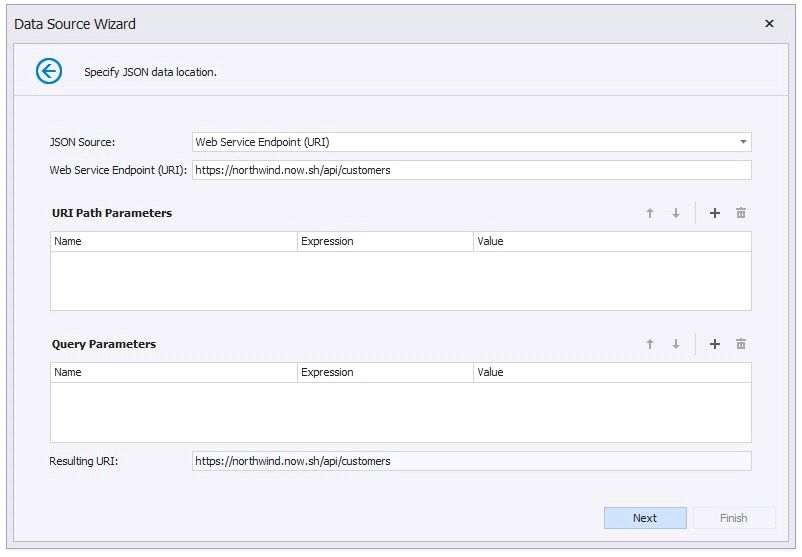
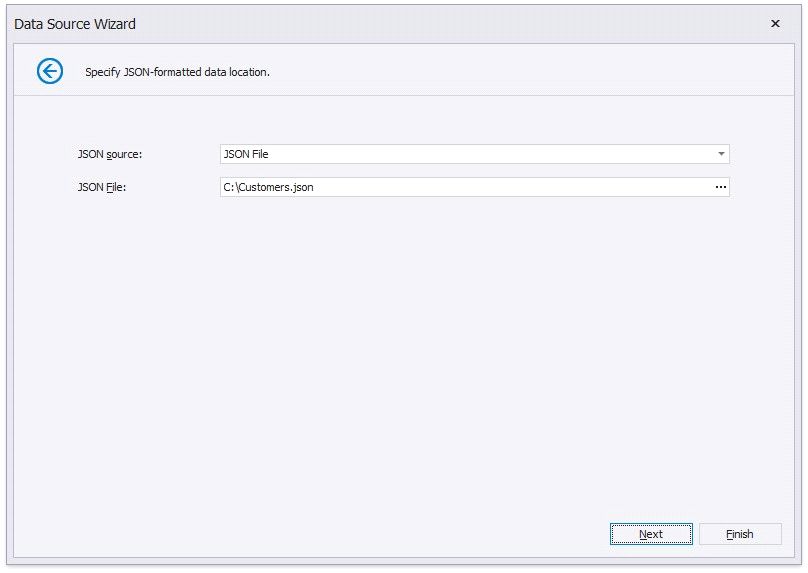
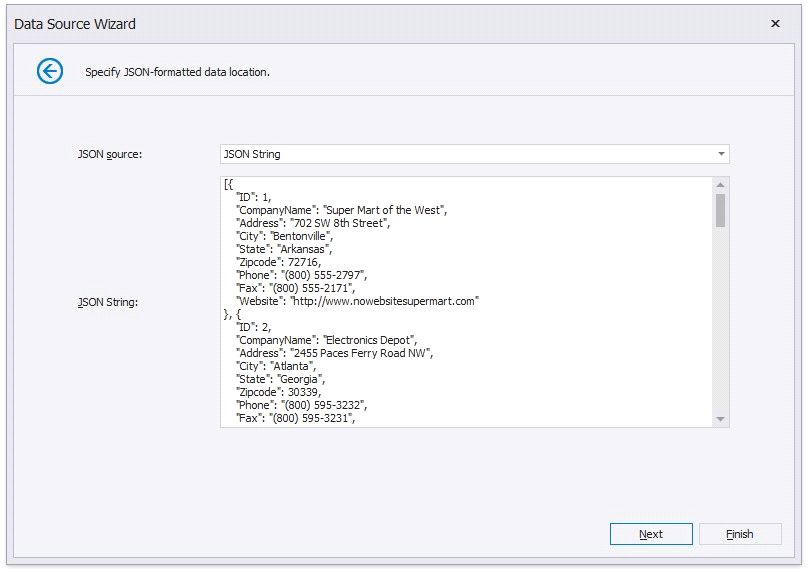
If you choose the Web Service Endpoint option, you can configure a web service endpoint, URI path parameters, query parameters, and header parameters.
4.1.Specify path parameters and query parameters.
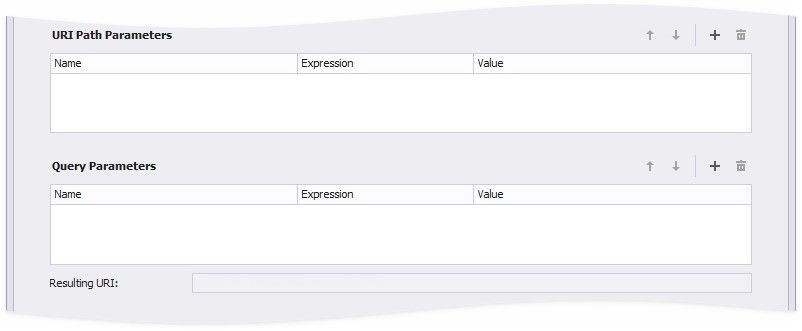
You can enable the new parameter's Expression property and use expressions to set path parameter and query parameter values.
 Select Expression Editor from the Value property's drop-down list, specify the expression in the invoked Expression Editor, and click OK.
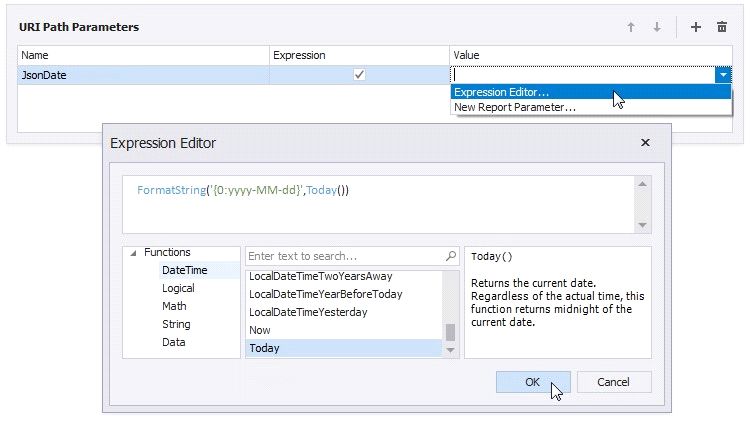
configure the report parameter in the invoked Report Parameter dialog, and click OK
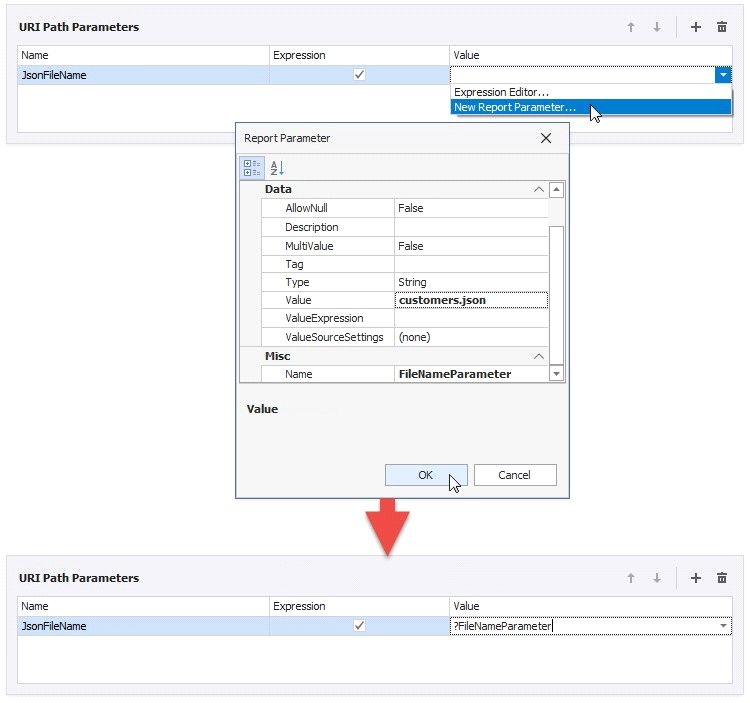
Path parameters and query parameters are included in endpoint requests in the same order as they are listed. Move a parameter up or down in the list to change its position in endpoint requests.
The Resulting URI read-only field shows how the resulting JSON URI looks.
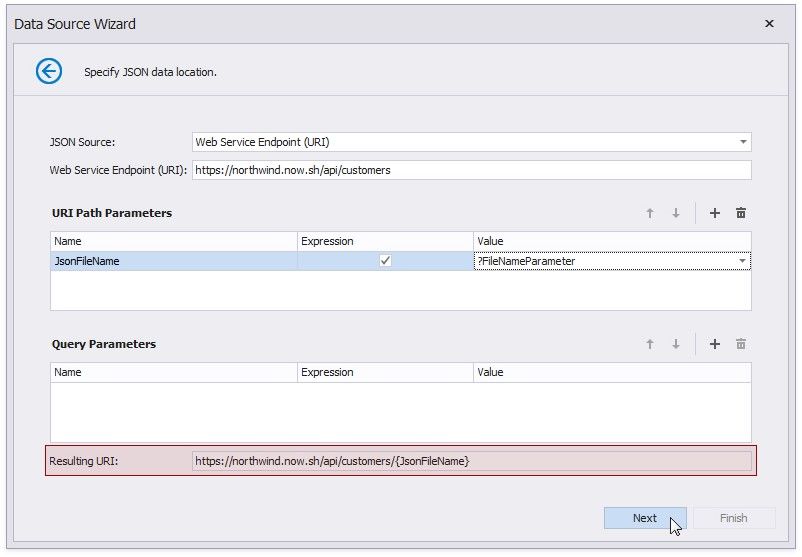
Click Next to proceed to the Wizard's next page.
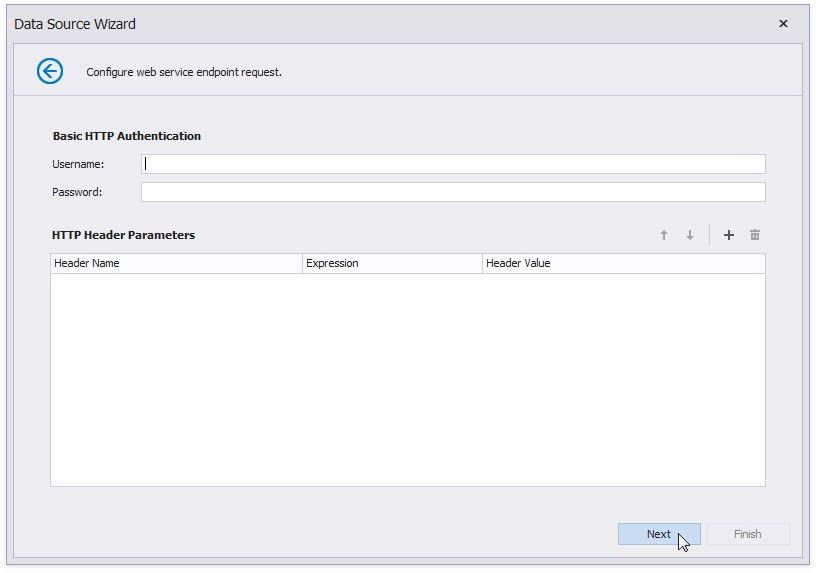
4.2.Configure the Basic HTTP Authentication credentials and HTTP header parameters. Use the same steps as in P.4.1. above to configure a header parameter.
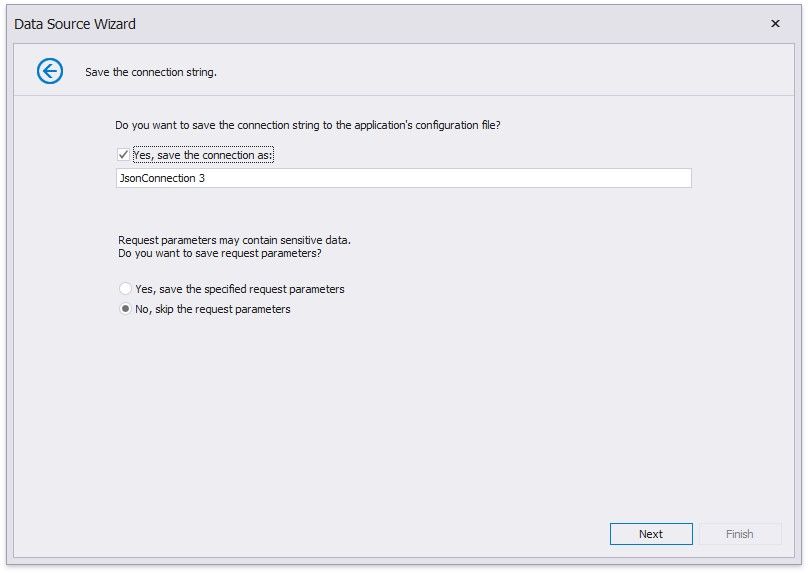
4.3.Choose whether to save the created connection string to the application's configuration file. If not, the connectionparameters are saved to the report's definition.
TIP
If the path parameters, query parameters, and header parameters you specified do not contain sensitive data, you can save them along with the connection parameters. Otherwise, the path parameters, query parameters, and header parameters are used once to retrieve JSON data to an object in memory. This object is accessible until you close the Report Designer.
5.On the next page, the wizard shows the specified JSON data's structure. You can choose all nodes or a subset of nodes.
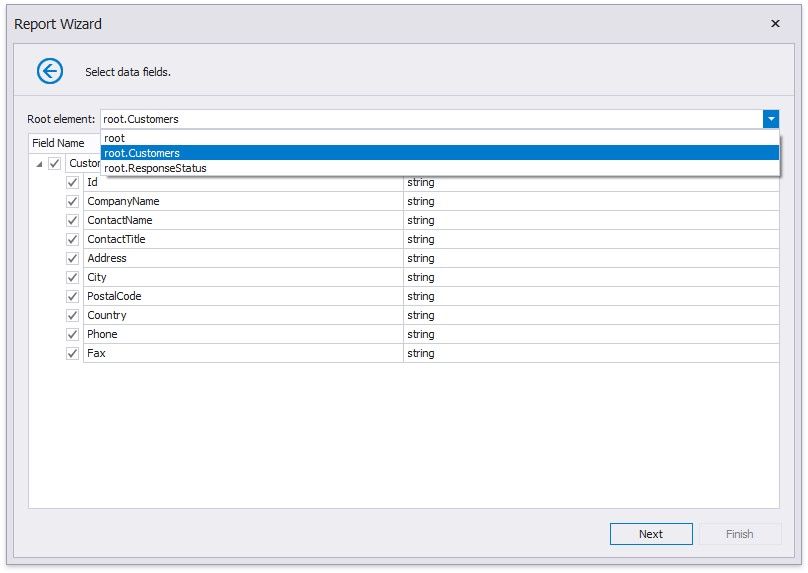
Uncheck the data fields that your report does not require.
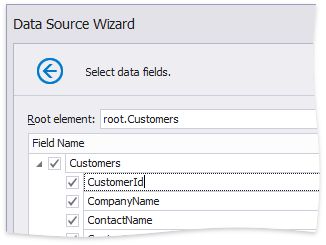
You can rename data fields if necessary.
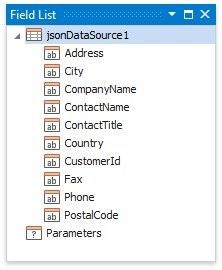
After you finish the wizard, it creates the JsonDataSource component. This component retrieves the checked data fields that the selected JSON element includes. The Field List reflects the data source structure.
Customize the JSON Data Source
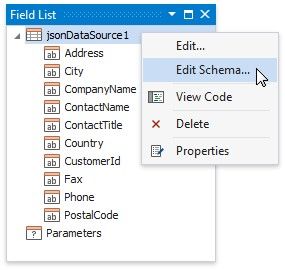
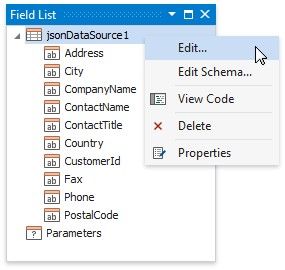
Right-click the JsonDataSource component in the Field List or Report Explorer and choose Edit.... Specify another JSON data location and reconfigure data fields in the invoked wizard.
Customize the JSON Data Source Schema
Right-click the JsonDataSource component in the Report Explorer and choose Edit Schema.... Reconfigure data fields in the invoked wizard page.