Batch Reports
The Batch subsection of the Report option menu contains reports that are designed to be run in batch mode and produces multiple single PDF reports.
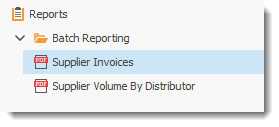
Batch Reporting for Supplier Invoices: Is accessible under the "Reports" section of RHOP, and under the sub-section "Batch Reporting"to batch print(to PDF) the supplier invoices. Ensure that the Suppliers Export to Sage has been performed prior to using this report, since this process will use the invoice number that was generated during that process.
Open the Batch Printing screen:
1. Select the period range to include on the invoices.
2. Select the Payment Due Date
3. Select the folder (on the server or local PC) where the generated invoices PDFs will be saved.
4. If the desire is to select all suppliers that have rebates calculated for the selected period range, then click on the "Gather All Suppliers With Rebates" button. The Sage invoice numbers will be automatically retrieved from each supplier that corresponds to the selected "To Period".
5. If the desire is to only select a few suppliers, it would be to use the "New" button, on the left end of the toolbar just above the Suppliers list. You will have to select the supplier and enter the invoice number manually.
6. It is possible to remove suppliers from the list, by using the "Delete"(X) button that is located just above the suppliers list.
7. Enter the applicable Marketing Allowance for each Supplier.
8. Once all the suppliers have all the required data entered, click on the "Generate Supplier Invoices" button to generate the invoices to PDF files. The filenames will contain the supplier's name and the invoice number.
Batch Reporting for Supplier Volume By Distributor: permits to batch print(to PDF) the Supplier Volume By Distributor report. It is accessible under the "Reports" section of RHOP, and under the sub-section "Batch Reporting".
Open the Batch Reporting screen:
1. Select the period range to include on the reports.
2. Select the folder where the generated report PDFs will be saved.
3. Select the Member Rebate Programs to include on the reports. It is possible to include one rebate program at a time or all the rebate programs by using the "Gather All Member Rebate Plans" button.
4. Select the Manufacturers to include on the reports. It is possible to include one manufacturer at a time or all the manufacturers that have purchases for the selected period range by using the "Gather All Manufacturers" button.
5. Click on the "Generate Supplier Volume By Distributor Reports" button to generate the reports as PDF files.