Add Page Numbers
The tutorial describes how to add page numbers to your reports.
Add Page Numbers
Do the following to add page numbers to a report:
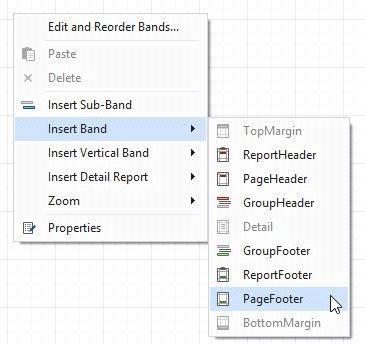
 Create a PageFooterBand in your report. To do this, right-click anywhere in the report designer, and in the context menu point to Insert Band, and then click PageFooter.
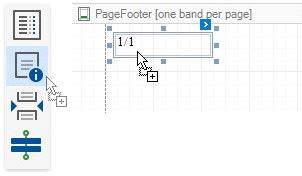
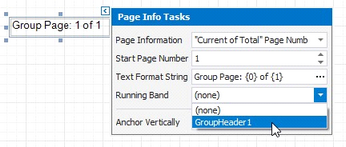
To change the control's display format, click its smart tag, and in the invoked actions list, specify the Text Format String property (e.g., Page {0} of {1}, to display the current page number out of the total number of pages).
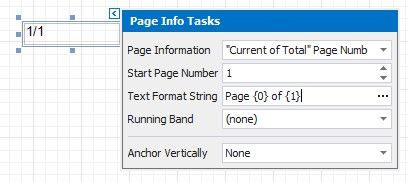
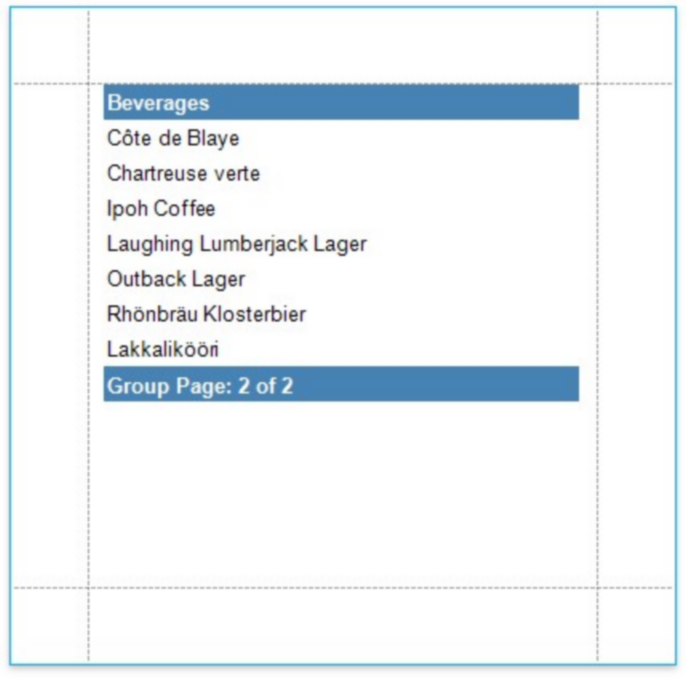
The following image illustrates the resulting report:

Add Page Numbers for Groups
Do the following to make your report display page numbers for groups or detail reports:
 Add the GroupFooter band. To do this, right-click anywhere on the report's surface, and in the invoked menu, point to Insert Band and click GroupFooter.
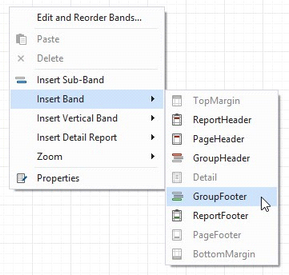
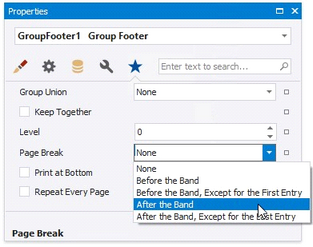
Next, force each new group to start on a separate page. Otherwise, group page numbers will be calculated incorrectly.
To do this, select the Group Footer, and set its Page Break property to After the Band.
Click the expand  the more icon at the bottom of the navigation bar

Select the Page info icon
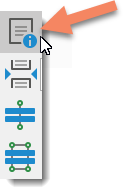
Drag the icon to the location where you want the information to display on your report
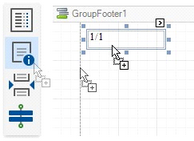
Select the label icon to set the display parameters.