Printing
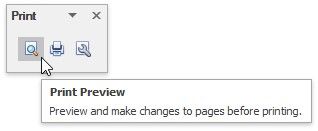
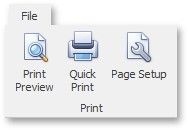
If a scheduler includes a Bar or Ribbon interface, you can use the Print toolbar or Ribbon page group.
PRINT VIA THE BAR INTERFACE |
PRINT VIA THE RIBBON INTERFACE |
|
|
Page Setup
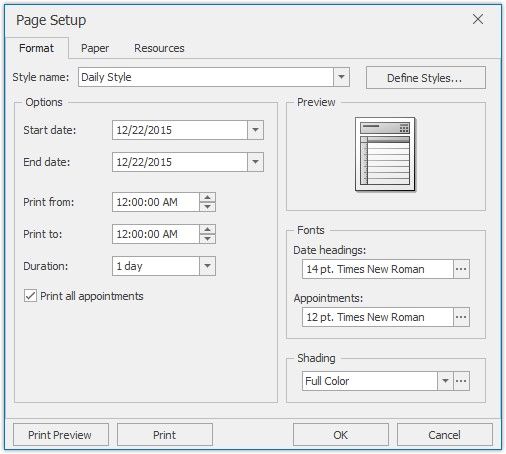
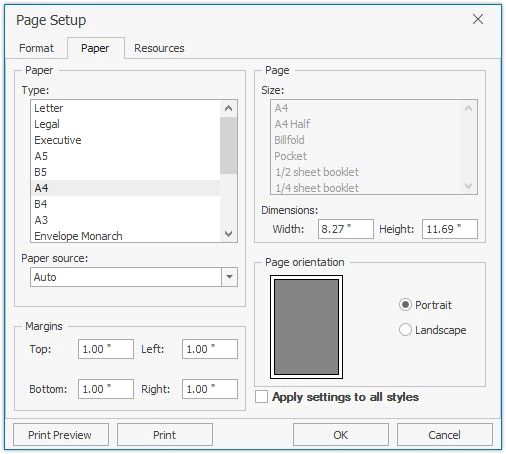
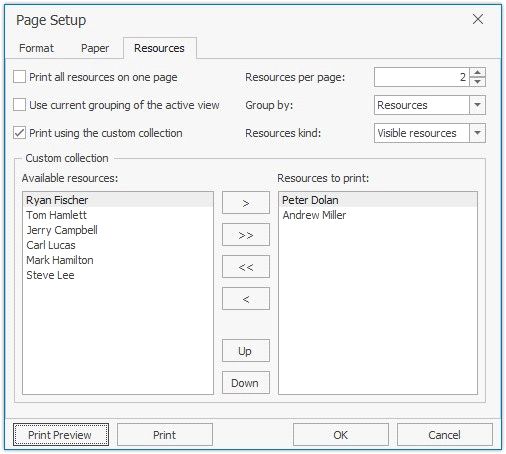
Click the Page Setup command button to invoke the Page Setup dialog. The Page Setup dialog consists of the Format, Paper and Resources tab pages, as illustrated in the images below.
Print Preview
Click the Print Preview button to invoke the Print Preview dialog, which provides a preview of the page to be printed.
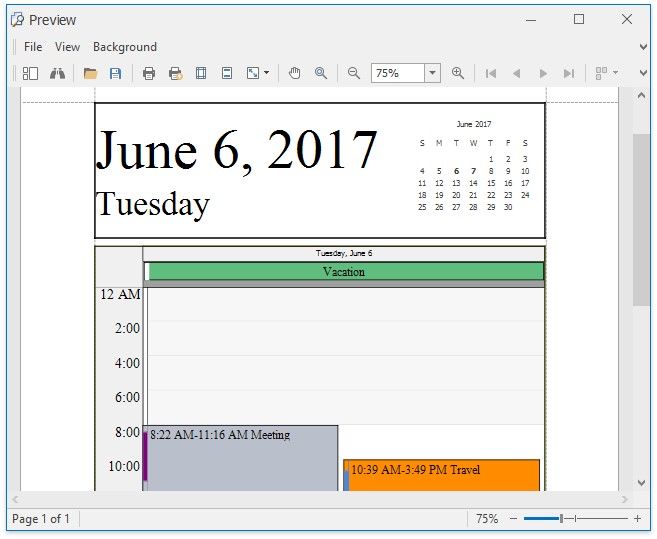
This dialog allows you to print the page, or save it to a file as a PDF or an image (e.g., BMP, EMF, WMF, GIF, JPEG, PNG or TIFF).
Click the Quick Print command button to send the scheduler content to the default printer using the current page and printer settings.