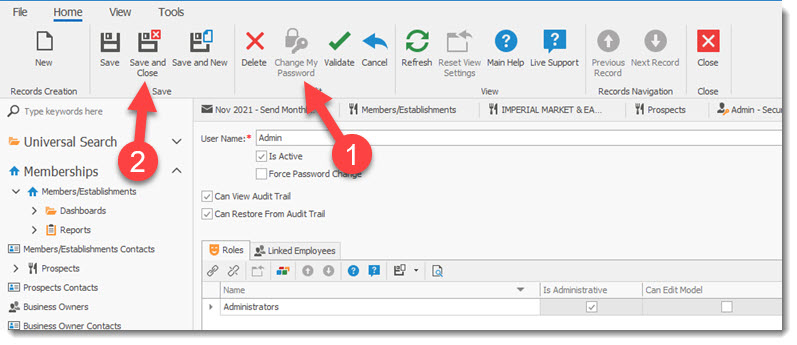
The My Details screen displays the permissions / security / role settings attached to you as the login user. It also permits the user to easily change their password.
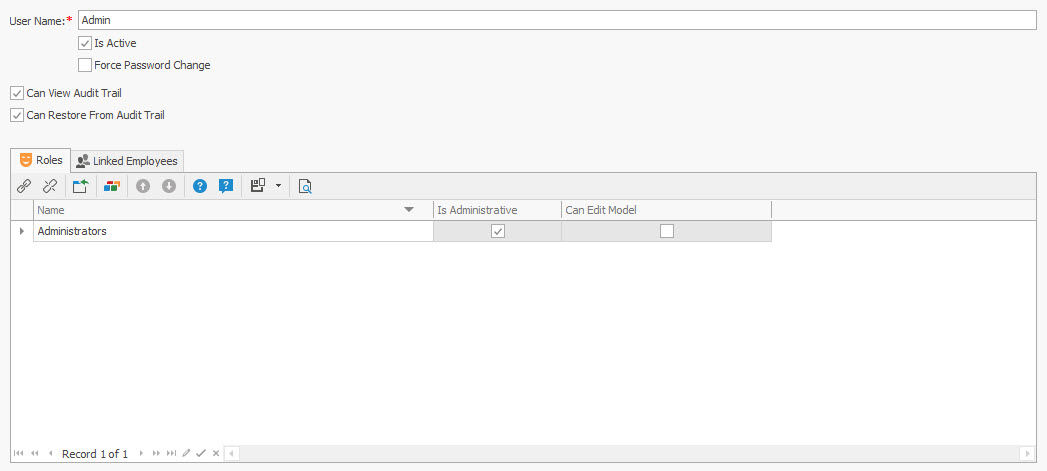
The items below your User Name permits the administrator to apply/remove various functions to your profile. Typically these options are only available to the system administrator(s).
Activate/Re-Activate /Suspend account
The system administrator(s) can Activate / Re-Activate / Suspend a user account. The field IS Active changes the user status from active when a check mark appears and non-active when no check mark appears in the field. If a user exceeds the security threshold of the system and his/her account is automatically de-activated the system administrator(s) must restore a check mark to this field for the user to be able to login. Make certain you save your changes (2) see below.
The field called Force Password Change, will force the user to change their password on next login.
The Role Tab displays the role (permissions) profile associated with the user.
The Linked Employees tab displays other users sharing the same role/permissions.
User Change Password
To change a password the user must select the Change My Password button (1). This will open a change password screen where the user can enter the new password. Note: the password must meet the minimum security requirements of the system. If it does not, the change password screen will display what is required to meet the minimum standard for the password.